
Whether staging an automotive hero shot, visualizing luxury consumer electronics in Blender Cycles, or creating an evocative cinematic title sequence in Unreal Engine 5, placing your 3D subjects against a flat, solid-color backdrop looks sterile and artificial. Professional 3D lighting artists rely on a high-fidelity textured background—such as hand-troweled Venetian plaster, rough chiseled slate, industrial cast concrete, or matte carbon fiber—to catch grazing rim lights, cast subtle micro-shadows, and ground digital assets with physical tangibility.
However, treating background surfaces like basic flat 2D wallpaper causes them to look painted-on when virtual cameras pan or orbit. A truly cinematic backdrop requires full Physically Based Rendering (PBR) channels: calibrated normal maps that respond to directional keylights, subtle roughness variations that produce realistic specular highlights, and seamless tiling math. Below is the technical guide to creating and lighting PBR textured backgrounds for 3D environments.
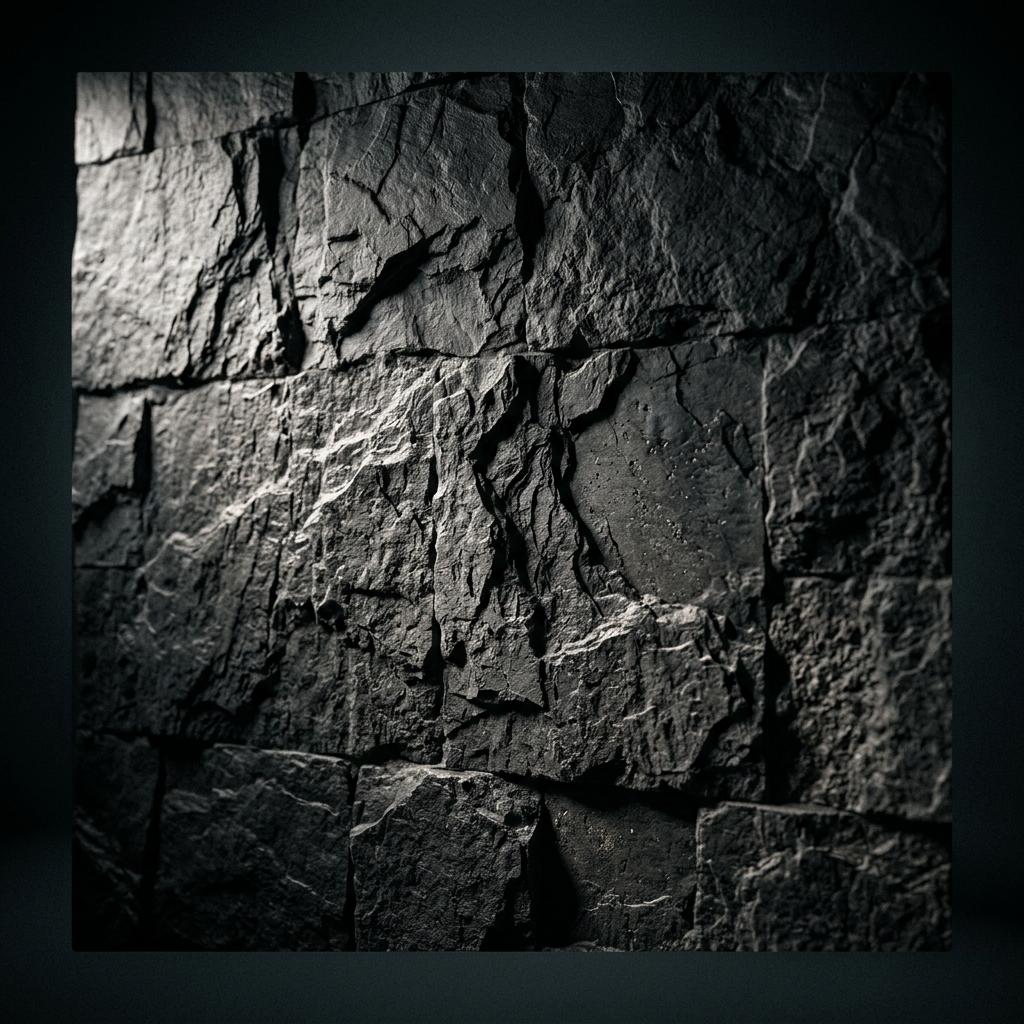
Chiseled dark slate PBR studio backdrop catching directional grazing light to reveal surface relief micro-shadows.
The 4 Most Popular PBR Textured Background Styles in 3D Art
Different rendering genres require specific backdrop physical characteristics to complement rather than distract from the hero subject:
| Backdrop Material Style | Aesthetic Vibe | Surface Roughness Range | Best 3D Subject Matter |
|---|---|---|---|
| Matte Venetian Plaster | Organic, refined, architectural luxury | 0.75 to 0.90 (Soft diffused scatter) | Cosmetics, perfume bottles, designer jewelry |
| Dark Chiseled Slate / Basalt | Moody, tactile, premium engineering | 0.40 to 0.70 (Sharp micro-facets) | Luxury watches, sports cars, audio equipment |
| Brushed Aerospace Metal | Industrial, futuristic, minimalist | 0.15 to 0.35 (Anisotropic streaks) | Robotics, gaming laptops, mechanical components |
| Distressed Grunge Concrete | Gritty, urban, dramatic contrast | 0.80 to 0.95 (Porous cavitation) | Streetwear apparel, weapons, action game props |
Studio Lighting Setup for Textured Backdrops
To make a textured background pop in your 3D viewport, follow these professional lighting principles:
[Studio Lighting Topology for Textured Backdrops]
                     [Top Rim Light]
                           │
                           ▼
[Left Fill Light] ──> [3D Hero Model] <── [Right Key Light]
                           │
                           ▼
          [Curved Cyclorama PBR Backdrop]
                           ▲
                           │
[Low-Angle Grazing Sidelight]- Deploy Low-Angle Grazing Lights (Raking Light): A light pointing straight at a wall flattens normal maps. Position a soft rectangular area light at a sharp 75-degree to 85-degree grazing angle along the wall. The light skims across the surface, catching the peaks of the normal map while casting deep shadows into micro-cavities.
- Utilize Curved Cyclorama Geometry (Cyc Wall): Avoid hard 90-degree corners where the studio floor meets the vertical wall. Model a gentle curved bevel (with a radius of 2 to 5 meters) to ensure a seamless gradient of light from floor to ceiling.
- Calibrate Depth of Field (DoF):
To keep viewer attention locked onto your hero subject, set your virtual camera lens to an aperture of
f/2.8orf/4.0. The textured backdrop will softly blur in the background, creating creamy bokeh while retaining its tangible surface character.
Generate Normal Maps and Custom Materials Online
Synthesize custom textured studio backdrops tailored to your exact 3D render specifications in seconds.
If you need to generate production-ready normal maps and PBR textures for this workflow, start with our Free Online Normal Map Generator — Try Textured Slate Backdrop.
You can also generate tileable surface textures for modular environment meshes using our Seamless Texture Generator — Try Dark Textured Studio Backdrop.
Step-by-Step: Setting Up a PBR Backdrop in Blender
Follow these steps in Blender 4.x for Cycles or Eevee Next:
- Model the Curved Mesh: Extrude an
L-shaped plane and add a 1-meter Bevel modifier with 16 segments at the floor-wall intersection. Right-click and choose Shade Smooth. - Assign the Principled BSDF: Connect the Albedo map to Base Color (
sRGB). - Connect the Normal Map: Insert a Normal Map node (
Shift+A -> Vector -> Normal Map). Connect your normal texture (Linear / Non-Color) to the Color input of the Normal Map node, and connect its Normal output to the Principled BSDF Normal socket. - Tune Roughness: Connect the Roughness map (
Linear) and insert a ColorRamp node between them to fine-tune glossiness across grazing angles.
Related Guides and Reading
- Dark Texture Background PBR Guide: Studio Backdrops and Materials — Deep dive into dark studio materials.
- Texture Generator Guide: Create 3D Seamless Textures Online — Synthesizing procedural materials from prompts.
- How to Use Normal Maps in Unity and Unreal Engine 5 — Real-time game engine shader setups.
- What is a Tileable Texture: 3D Artists Guide — Seamless boundary methods for large surfaces.