
Every 3D artist has experienced this moment: you are walking outside and spot an extraordinary real-world surface — a weathered century-old brick wall with crumbling mortar, an aged slab of mossy bark, or a beaten industrial diamond-plate steel hatch. You pull out your smartphone, snap a crisp high-resolution photo, transfer it to your workstation, and assign it to a 3D plane in Blender or Unreal Engine. The result is almost always deeply disappointing. What looked tactile and rich on your camera screen looks like a flat, muddy sticker in your 3D viewport. The photo contains harsh directional sun shadows, lens vignetting, non-tileable borders, and zero physical height or roughness data. Converting an image to texture requires a structured technical transformation from a 2D photograph into a complete physically based rendering (PBR) material set.
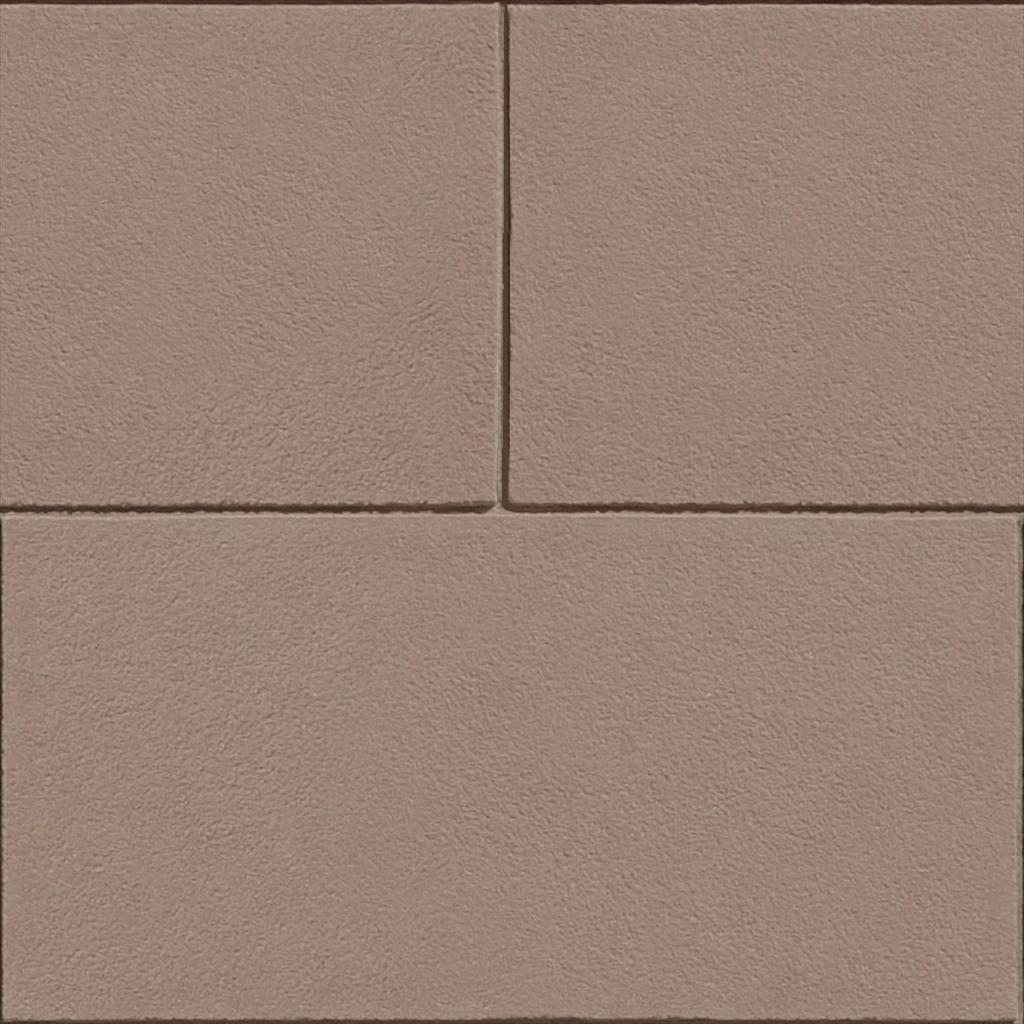
Converting a real-world photograph into a 3D texture requires de-lighting the albedo, synthesizing seamless edges, and computing tangent-space normal and roughness maps.
A raw photograph captures light reflected at one specific moment under one specific light angle. A 3D game or film engine, by contrast, needs to illuminate that material dynamically from any angle under arbitrary lighting conditions. If you leave baked shadows and specular highlights in your texture, real-time lights will fight against the photograph, breaking physical realism. Below is the full technical pipeline for de-lighting photos, eliminating tiling seams, computing tangent-space normal maps, and deriving PBR roughness and ambient occlusion channels.
The 5-Phase Image-to-Texture Conversion Pipeline
Transforming a 2D photo into a game-ready PBR material involves five sequential processing stages:
[5-Phase Image to PBR Pipeline]
Raw Smartphone Photo
       │
       ▼ [Stage 1: Perspective Rectification & Lens Flattening]
Orthogonal Square Crop (Perspective straightened, barrel distortion removed)
       │
       ▼ [Stage 2: De-Lighting & Shadow Neutralization]
Flat Albedo Base Color (Directional shadows removed, even luminance across canvas)
       │
       ▼ [Stage 3: Seamless Boundary Synthesis]
Seamless Tileable Texture (50% Offset wrapping, boundary seam blended)
       │
       ├─────────────────────────────────┬─────────────────────────────────┐
       ▼ [Stage 4]                       ▼ [Stage 5]                       ▼ [Stage 5]
16-bit Height & Normal Map       Roughness Distribution Map        Ambient Occlusion (AO)
(Sobel/Scharr gradient vectors) (Luminance & frequency inversion) (Cavity crevice darkening)- Stage 1 — Perspective Rectification and Cropping: Real-world photos are rarely taken at a perfect 90-degree angle. Keystone distortion and wide-angle lens barrel curvature must be corrected using perspective crop tools to ensure horizontal mortar joints and timber planks remain parallel.
- Stage 2 — De-Lighting (Shadow and Highlight Neutralization): Directional sunlight casts deep micro-shadows behind pebbles, bricks, and bark folds. In PBR, shadows belong to the engine’s lighting passes, not the material texture. Using high-pass filtering, frequency separation, or neural AI delighting neutralizes low-frequency gradients and extracts pure diffuse albedo.
- Stage 3 — Seamless Boundary Synthesis (Tileability): Offsetting the image by 50% horizontally and vertically reveals the harsh cross-shaped seam at the borders. Seamless generators blend these boundary edges using patch-based synthesis or diffusion inpainting.
- Stage 4 — Tangent-Space Normal Map Extraction: The neutral height field is evaluated using Sobel or Scharr spatial convolution filters to compute horizontal (X) and vertical (Y) surface slopes, normalized into RGB normal vectors
[R: X, G: Y, B: Z]. - Stage 5 — Roughness and Ambient Occlusion Derivation: High-frequency micro-pores are translated into roughness microfacets, while deep concave cavities are mapped into ambient occlusion crevice masks.
Image-to-Texture Conversion Workflow Comparison
Compare the industry’s four primary photo-to-texture conversion methods:
| Conversion Method | Processing Time | Hardware / Software Required | De-Lighting Quality | Normal Map Accuracy | Best Use Case |
|---|---|---|---|---|---|
| Online AI PBR Generator | 10 to 30 seconds | Any modern web browser | Excellent (Neural de-lighting) | High (True surface vectors) | Rapid environment art, concepting, indie gamedev |
| Photoshop High-Pass Filter | 15 to 45 minutes | Adobe Photoshop subscription | Moderate (Manual dodging/burning) | Low (Crude grayscale height conversion) | Basic graphic overlays and background props |
| Substance 3D Sampler | 20 to 60 minutes | High-end GPU workstation | Very High (ML delighting filters) | Very High (Interactive height adjustment) | AAA game character apparel and hero assets |
| Photometric Stereo Scanning | 2 to 4 hours | Camera rig + 4 directional lights | Maximum (Zero shadows by design) | Maximum (Physical normal capture) | Archival digital twin museum photogrammetry |
Step-by-Step: Converting a Photo into PBR Maps
Follow this hands-on tutorial to turn any reference photograph into a production-ready PBR material:
-
Capture the Optimal Source Photo:
- Shoot on an overcast day or under open shade to minimize harsh directional sun shadows.
- Hold your camera perpendicular (at a strict 90-degree angle) to the surface.
- Avoid using the camera flash; direct point-source flash creates severe circular hot spots and heavy radial vignetting.
-
De-Light the Albedo in Software or via AI: To remove uneven lighting gradients in Photoshop or GIMP:
- Duplicate the image layer and apply Filter > Other > High Pass with a broad radius (
50px – 100px). - Set the layer blend mode to Linear Light at
50%opacity, or run an automated neural delighting tool. - This removes the large dark-to-light gradient across the photo while preserving crisp micro-details.
- Duplicate the image layer and apply Filter > Other > High Pass with a broad radius (
-
Make the Image Seamless via 50% Offset: In any raster editor, run Filter > Other > Offset set to
+50% Horizontaland+50% Vertical. The outer edges will now meet in the center of the canvas. Use a patch tool, clone stamp, or AI generative fill to blend the visible cross-seam smoothly.
[50% Offset Seamless Verification]
[ Quadrant A | Quadrant B ]           [ Quadrant D | Quadrant C ]
[------------+------------]  ──Offset 50%──> [------------+------------]
[ Quadrant C | Quadrant D ]           [ Quadrant B | Quadrant A ]
↑ Visible Cross Seam (Blend Here)-
Calculate the Tangent-Space Normal Map: Input your seamless, delit image into an online normal map generator. Adjust the Strength slider:
- For shallow surfaces (fabric, smooth leather, paper):
Strength: 0.20 – 0.40. - For medium surfaces (wood grain, asphalt, concrete):
Strength: 0.50 – 0.85. - For deep relief (cobblestones, rough quarried rock, tree bark):
Strength: 1.00 – 1.80.
- For shallow surfaces (fabric, smooth leather, paper):
-
Derive the PBR Roughness Map: Invert the tonal contrast of porous areas: in most natural materials, deeper crevices and dirty grooves accumulate moisture and dust, requiring higher roughness (
0.80 - 0.95). Polished contact ridges require lower roughness (0.20 - 0.40). Use a curve adjustment to map these values into their physical ranges.
Converting Images to PBR Textures Online in Seconds
Manually delighting photos, stamping out seams, and building normal filters in 2D software is tedious, time-consuming, and prone to unnatural repetition artifacts. Modern online converters automate the entire pipeline — from perspective flattening to neural delighting and 16-bit normal extraction — in a single click.
If you need to rapidly convert photos into production-ready normal maps, height fields, and complete PBR texture sets, power up your pipeline with our Free Online Normal Map and PBR Generator — Convert Photos to Normal Maps. You can also turn any photo into a seamlessly tileable texture pattern using our Seamless Texture Generator Online.
Image-to-Texture Production Checklist
- Source photo shot under diffuse overcast lighting, strictly perpendicular to the surface.
- Perspective distortion and lens curvature rectified before extracting texture maps.
- Directional cast shadows and specular hot spots neutralized during de-lighting.
- 50% offset applied along X and Y axes to verify seamless boundary edge blending.
- Normal map vector orientation checked for target engine (OpenGL +Y vs DirectX -Y).
- Roughness map calibrated with realistic physical values, avoiding raw uncurved photographic contrast.
Related reading: Image to Normal Map Converter · How to Create Normal Map from Photo · Make Image Seamless Texture Online · Convert Albedo Diffuse to Normal Map