
Nothing shatters the illusion of reality in 3D rendering faster than clean, mathematically uniform surfaces. Novice 3D artists often assume that once they assign a photorealistic 4K base material to a model, the shading work is finished. But look around any physical environment: even a pristine sports car fresh from the showroom floor has microscopic clearcoat orange peel, fine dust settling on horizontal panels, and faint wiper streaks along the glass. In technical art, layering a texture overlay — specifically surface imperfection masks, detail normal maps, and cavity grime — is the crucial technique that transforms sterile CGI into convincing physical reality without multiplying polygon budgets.
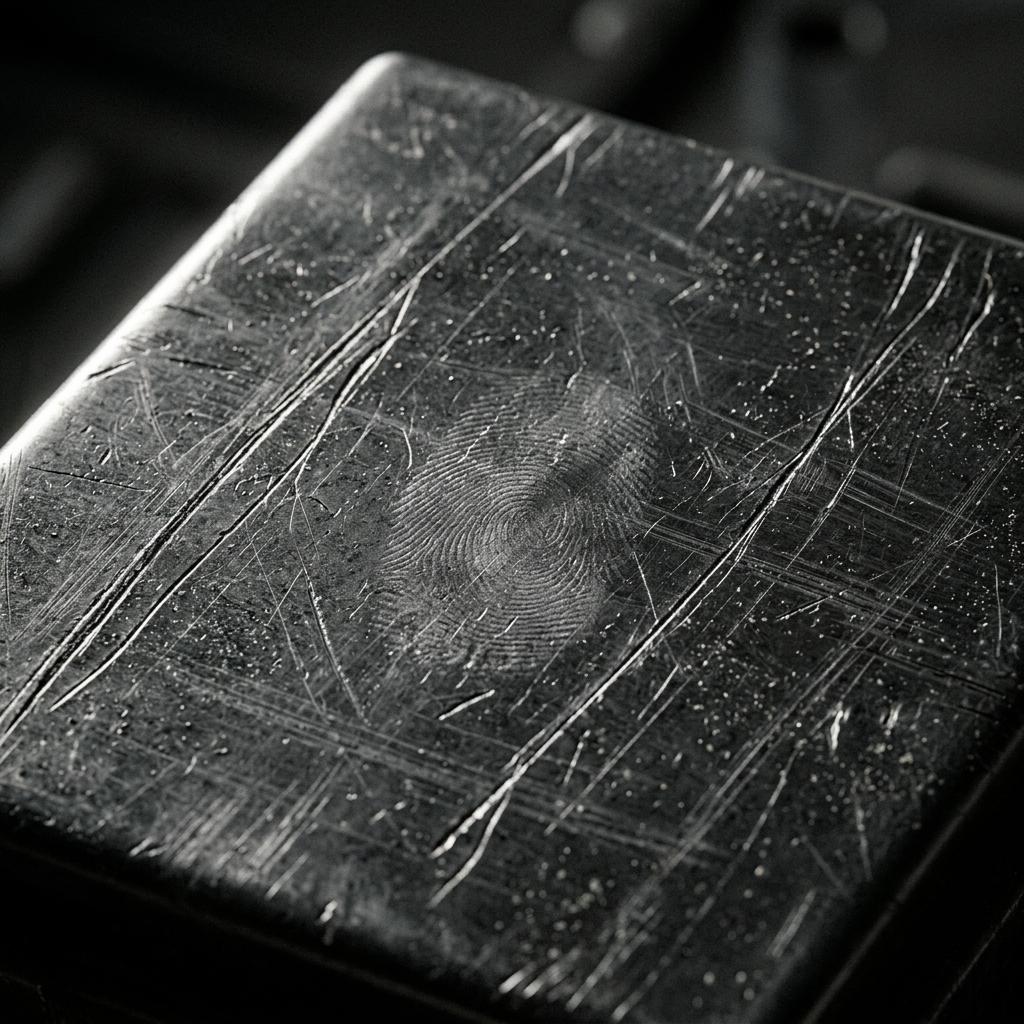
A production-ready texture overlay workflow blends high-frequency surface imperfections across roughness and normal channels without degrading the underlying material definition.
In 2D photo editing, an “overlay” is often just a blend mode like Screen or Multiply applied across an entire canvas. In a physically based rendering (PBR) pipeline, however, a texture overlay is a structured physical response. Different overlay elements belong to distinct channels of your shader graph. Routing grime into Base Color while ignoring Roughness, or naively adding normal maps with basic vector addition, creates muddy artifacts and destroys lighting accuracy. Below is the production workflow for blending imperfection overlays, layering detail normals with Reoriented Normal Mapping (RNM), and optimizing multi-tier shaders in Blender and Unreal Engine 5.
The Three Physical Channels of Texture Overlays
To maintain physical plausibility, every texture overlay element must target its corresponding PBR channel:
[PBR Texture Overlay Channel Routing]
Overlay Type ───────────────> Target Channel ──────────────> Physical Shader Effect
Fingerprints / Skin Oils     ──> Roughness Channel           ──> Sharp vs blurred specular reflection lobes
Micro-Scratches / Abrasion   ──> Normal Map (via RNM)        ──> Directional light glancing highlight deflections
Dust / Airborne Lint         ──> Base Color + Roughness      ──> Dielectric desaturation + diffuse scatter
Cavity Grime / Edge Crevice ──> AO Multiply + Base Color ──> Trapped ambient occlusion shadow darkening- Roughness Channel Overlays (Micro-Specular Variance):
Over 80% of real-world surface character lives in the Roughness map. Fingerprint smudges, grease residue, wiping cloth streaks, and dried water spots do not dramatically alter Base Color; they alter the microfacet distribution of light. In a shader, these are layered as grayscale masks that remap smooth polished areas (
Roughness: 0.08 - 0.15) into slightly diffused contact zones (Roughness: 0.35 - 0.55). - Normal Map Overlays (Surface Relief and Gouges): Fine scratches, paint chipping, and machine tooling marks possess physical depth that catches glancing light. These details belong in a detail normal map blended over your primary macro normal map.
- Base Color and Cavity Overlays (Color Attenuation): Accumulated mud, rust, and heavy grime deposit actual pigments on the surface. These must be modulated by an Ambient Occlusion (AO) or curvature mask so dirt naturally settles into concave geometry crevices rather than floating uniformly across flat faces.
The Danger of Naive Normal Addition vs RNM
The most catastrophic error in texture overlay authoring is using linear addition or standard Photoshop overlay math to combine two normal maps. Tangent-space normal maps represent unit-length vectors (x, y, z) where z points perpendicular to the surface.
When you linearly add two normal vectors:
// WRONG: Naive addition flattens vector lengths and destroys glancing angles
float3 badNormal = normalize(BaseNormal + DetailNormal);
Naive addition cancels out horizontal relief, compresses the Z component, and causes lighting on steep slopes to turn pitch black or invert.
The industry-standard solution is Reoriented Normal Mapping (RNM), originally developed by Colin Barré-Brisebois and Stephen Hill. RNM treats the base normal as a newly oriented tangent space, tilting the detail normal relative to the base slope:
// CORRECT: Reoriented Normal Mapping (RNM)
float3 BlendNormalsRNM(float3 base, float3 detail)
{
    base += float3(0.0, 0.0, 1.0);
    detail *= float3(-1.0, -1.0, 1.0);
    return normalize(base * dot(base, detail) - detail * base.z);
}
In Blender 4.x, the built-in Mix node set to Mix Normal (or custom RNM node groups) executes this math automatically. In Unreal Engine 5, always use the native BlendAngleCorrectedNormals material function.
PBR Parameter Reference for Common Texture Overlays
Use this calibration matrix when configuring imperfection overlays across industrial, automotive, and interior assets:
| Overlay Imperfection Type | Primary PBR Channel | Blend Operation | Roughness Impact | Normal Map Amplitude | UV Tiling Strategy |
|---|---|---|---|---|---|
| Micro-Scratches / Swirls | Normal + Roughness | RNM / Screen | Clamped to +0.15 - +0.30 | 0.10 - 0.25 | 4x – 8x Triplanar |
| Fingerprint Smudges | Roughness only | Screen / Linear Dodge | Boosts smooth 0.05 to 0.45 | 0.0 (Zero normal) | 1x Object UV (Local) |
| Airborne Settled Dust | Base Color + Roughness | Alpha Lerp via World-Z | Forces 0.85 - 0.95 | 0.02 - 0.05 (Fine grain) | World-Z Upward Mask |
| Dried Water Spot Rings | Roughness + Normal | Screen + RNM | Ring edges spike to 0.60 | 0.05 - 0.12 | 2x – 4x Non-repeating |
| Chipped Paint Edges | Base Color + Roughness + Normal | Binary Mask Lerp | Exposed metal Roughness 0.35 | 0.60 - 1.00 | Mesh Curvature Mask |
Note: For settled dust, always multiply the overlay mask by the surface normal’s vertical component saturate(WorldNormal.z) so dust only settles on upward-facing horizontal planes.
Step-by-Step: Constructing a Multi-Tier Overlay Shader
Follow this production workflow in Blender or Unreal Engine 5 to construct a modular, non-destructive surface imperfection shader:
-
Establish the Clean Base Material: Configure your primary PBR channels (
Base Color,Metallic,Roughness,Normal) as if the asset were brand new. -
Layer Detail Scratches via RNM: Sample a seamless tileable scratch normal map tiled at
4xto6x. In Unreal Engine 5, feed Base Normal into Base and Scratch Normal into Additional Normal of the BlendAngleCorrectedNormals node. In Blender, route through a vector math RNM group. -
Composite Roughness Imperfections via Map Range: Never feed high-contrast black-and-white grunge maps directly into the Roughness input. Run the imperfection texture through a Map Range node:
- Clean polished metal: set
From Min: 0.0,From Max: 1.0toTo Min: 0.08,To Max: 0.38. - This prevents smudges from turning into fully diffuse white chalk spots.
- Clean polished metal: set
[Blender 4.x Non-Destructive Texture Overlay Architecture]
(Clean Base Color: #2A2D30) ──[Lerp via Dust Mask]──> [Principled BSDF: Base Color]
(Base Roughness: 0.12) ───────┐
                              ├──> [Map Range: 0.12 - 0.42] ──> [Principled BSDF: Roughness]
(Smudge Imperfection Texture)─┘
(Base Normal Map) ────────────┐
                              ├──> [Mix: Mix Normal (RNM)] ───> [Principled BSDF: Normal]
(Detail Scratch Normal Map) ──┘
(Mesh Curvature / AO Mask) ───[Multiply with Dirt] ─────────> [Cavity Crevice Darkening]-
Isolate Dust with World-Z Normal Angle: Extract the World-Z vector from your geometry normal node. Pass it through a Smoothstep curve (
Min: 0.65,Max: 0.95) to create an upward-facing mask. Lerp a muted, desaturated dust color into Base Color and boost Roughness to0.90exclusively on horizontal tops of props and machinery. -
Prevent UV Tiling Seams with Stochastic Mapping: When overlaying seamless imperfections across large environment walls, visible tiling patterns destroy the effect. Use a stochastic or hex-tiling texture function (such as UE5’s
TextureBombingnode) to randomize rotation and scale across repeated UV tiles.
Generating Custom Texture Overlays and Normal Maps
Sourcing pristine, non-repeating surface imperfection maps, micro-scratch displacement vectors, and high-resolution grunge masks from static photo libraries often results in low-contrast scans with baked lighting shadows. AI-assisted generators can synthesize seamless, calibrated imperfection textures and normal fields directly from descriptive text prompts.
If you need to generate production-ready surface imperfection normal maps, grunge overlay masks, and complete PBR wear passes for hard-surface game props, streamline your texturing pipeline with our Free Online Normal Map and PBR Generator — Try Scratched Metal Overlay. You can also generate seamless tileable surface imperfection masks for large architectural surfaces using our Seamless Texture Generator Online.
Texture Overlay Production Checklist
- Detail normal maps combined with base normals using Reoriented Normal Mapping (RNM), never linear addition.
- Roughness imperfection masks clamped via Map Range nodes to preserve plausible physical sheen.
- Dust overlays constrained to upward-facing surfaces via World-Z normal masks.
- Grime and dirt accumulation anchored to concave geometry crevices using AO and curvature maps.
- Macro UV repeat patterns broken up using texture bombing, triplanar projection, or stochastic tiling.
-
Metallicchannel isolated from non-conductive dirt layers using clean dielectric mask lerps.
Related reading: Grunge Texture PBR Guide · Roughness Map Guide · Normal Map Values Range Explained · Metal Normal Map PBR Guide