
Few mistakes expose an amateur 3D render faster than misinterpreting how surface tint and geometric micro-relief interact in a Physically Based Rendering (PBR) shader. Newcomers frequently ask why a periwinkle purple normal map cannot simply be wired into a shader’s base color slot, or wonder why painting darker cracks onto an albedo map fails to produce true light-reactive depth when a camera sweeps across the surface.
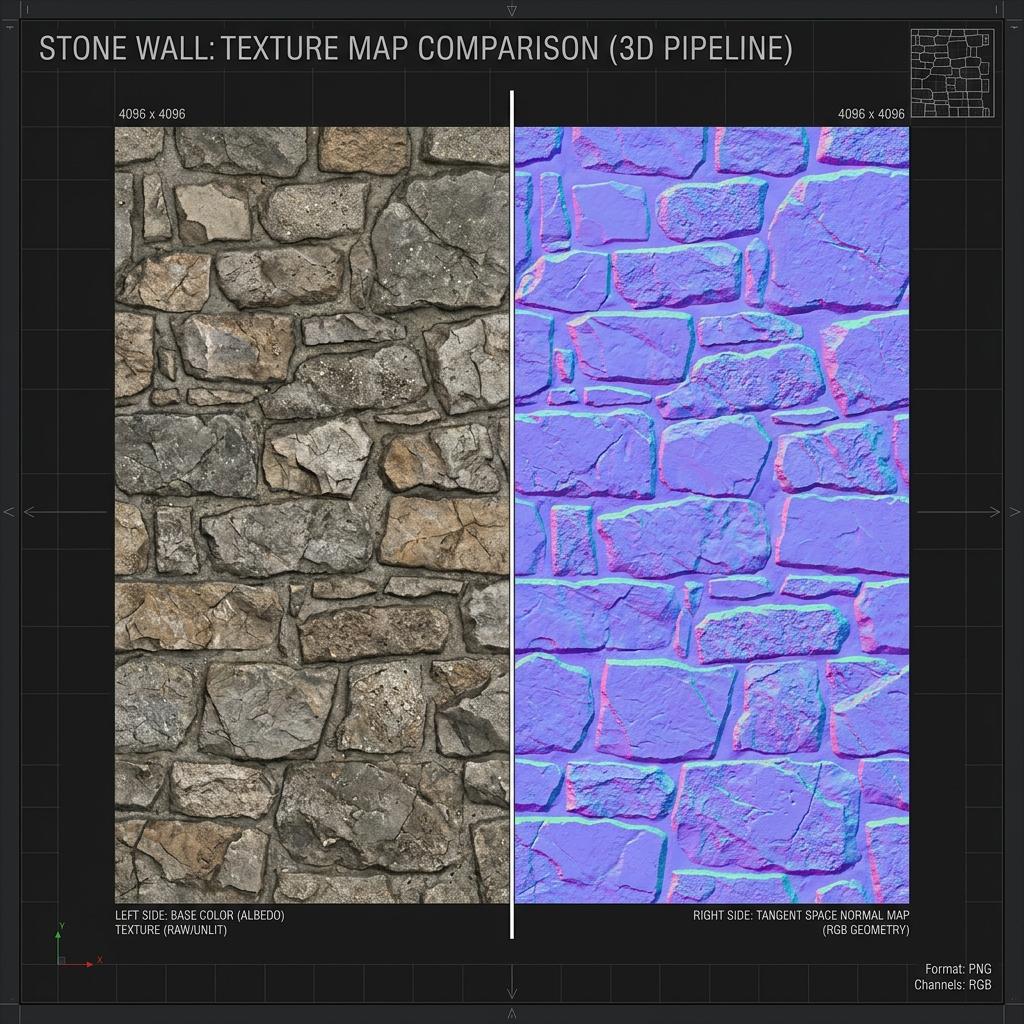
Base Color defines purely optical reflectance under diffuse lighting, whereas a Normal Map modifies surface tilt vectors to manipulate shadows and specular glints.
Both texture maps are essential cornerstones of modern real-time 3D pipelines, but they occupy opposite ends of the rendering equation. Below is the definitive guide to understanding the mathematical and visual differences between normal maps and base color, how to wire both correctly in modern shaders, and how to convert flat color bitmaps into dynamic depth vectors.
Core Conceptual Differences: Light Absorption vs. Geometric Angle
To grasp why these two maps cannot substitute for each other, consider how a real-time lighting pass in Unreal Engine 5, Unity, or Blender Cycles calculates a pixel’s final RGB value:
[PBR Pixel Shading Pipeline Architecture]
                      ┌──> [Normal Map (Non-Color)] ──> [Tangent Perturbation] ──┐
                      │                                                          ├──> [BRDF Lighting Model] ──> [Lit Pixel RGB]
[Geometry UV Point] ──┤                                                          │
└──> [Base Color (sRGB)] ──> [Diffuse Reflectance] ───┘- Base Color (Albedo / Diffuse Reflectance): Stores the intrinsic chromatic hue of a dielectric surface or the specular reflectance of a raw metal. Crucially, a true PBR base color is completely unlit. It must contain zero baked shadows, zero ambient occlusion dirt, and zero directional highlights. It tells the shader which wavelengths of photons are absorbed and which are scattered back.
- Normal Map (Surface Orientation Vectors): Stores directional unit vectors $(X, Y, Z)$ encoded into RGB color channels. It contains zero pigmentation data. When photons strike the virtual polygon, the normal map tilts the surface perpendicular, forcing the lighting engine to cast dynamic shadows and calculate specular reflections as if microscopic cracks and bumps physically existed on the mesh.
If you wire a normal map into a Base Color input, the object simply renders as flat, matte lavender plastic with purple and cyan streaks that never react to shifting sun lamps. Conversely, if you rely exclusively on painted black crevices in your base color, your asset looks convincing from a single camera angle but flattens into painted cardboard the moment the object rotates in a game viewport.
Normal Map vs. Base Color Technical Comparison Matrix
The table below breaks down the technical specifications, formatting rules, and pipeline requirements for both texture maps:
| Technical Property | Base Color (Albedo) Map | Tangent Space Normal Map |
|---|---|---|
| Data Nature | Optical color reflectance (Photometric) | Geometric unit vectors (Angular) |
| Color Space | sRGB (Gamma-corrected, $\gamma \approx 2.2$) | Non-Color / Linear (Raw data values, $\gamma = 1.0$) |
| Bit Depth per Channel | Standard 8-bit per channel (24-bit RGB or 32-bit RGBA) | 8-bit (BC5 compressed) or 16-bit half-float |
| Channel Meaning | R = Red hue, G = Green hue, B = Blue hue | R = Tangent (X), G = Bitangent (Y), B = Normal (Z) |
| Neutral Value | Mid-grey RGB(128, 128, 128) | Periwinkle lavender #8080FF RGB(128, 128, 255) |
| Baked Shadows / AO | Strictly Forbidden (Causes double-shadowing) | N/A (Geometric relief only) |
| Common Misconfiguration | Importing as Linear (Washes out color saturation) | Importing as sRGB (Distorts vector math and breaks shading) |
How to Correctly Wire Both Maps in Modern Shaders
Regardless of whether you are configuring shaders in Blender 4.x, Unity HDRP, or Unreal Engine 5, wiring base color and normal maps follows an unyielding technical hierarchy:
1. Blender Shader Editor Setup
- Connect the Base Color Image Texture node set to sRGB directly into the Base Color input socket of the Principled BSDF.
- Connect the Normal Map Image Texture node set strictly to Non-Color into the Color input of a Vector > Normal Map node.
- Route the Normal output of that node into the Normal input socket of the Principled BSDF.
2. Unreal Engine 5 Material Graph Setup
- Import your diffuse texture as Default (sRGB enabled) and wire the RGB pin into Base Color.
- Import your normal texture as Normalmap (BC5 / DXN). Unreal Engine automatically unchecks sRGB and handles tangent decoding internally. Connect the texture sample directly to the Normal material pin.
3. Unity Universal Render Pipeline (URP) Setup
- Drag the diffuse texture into the Base Map slot.
- Drag the normal texture into the Normal Map slot and click Fix Now if Unity detects the texture type is currently set to Default rather than Normal Map.
How to Convert Base Color Photos into Normal Maps
While baking normal maps from a sculpted high-poly mesh onto a game-ready low-poly asset provides pristine accuracy, environment artists frequently need to generate normal maps directly from photograph base textures (such as cobblestone roads, tree bark, or decorative floor tiles).
Because photographic base color represents light and pigmentation rather than height, simple automated grayscale conversions fail on contrasting surfaces:
- Delight the Albedo: Use image filters or AI delighting tools to strip existing shadows, ambient occlusions, and specular glare from the photo. A white painted pebble on dark soil should not be baked as an enormous crater merely because its luminance is high.
- Derive Height Relief: Calculate surface slope gradients using directional Sobel or Scharr convolution kernels across the delit luminance map.
- Encode Tangent Vectors: Reconstruct the X, Y, and Z vector fields, normalize each vector to a unit length of
1.0, and encode the results into the standard#8080FFRGB color space.
Streamline Your PBR Texture Generation Pipeline
Instead of wrestling with manual Photoshop high-pass filters that produce mushy, pillow-like normal maps from flat photos, dedicated AI and procedural generators extract true tactile surface depth while maintaining color fidelity.
If you have a flat base color texture or photo and need to generate production-ready normal maps with calibrated PBR sets, accelerate your texturing workflow with our Free Online Normal Map and PBR Generator — Try Weathered Cobblestone. You can also generate seamless modular surface textures for architectural environments using our Seamless Texture Generator Online.
Normal Map and Base Color Production Checklist
- Base color texture contains zero baked shadows or directional highlights.
- Base color imported with sRGB color management active.
- Normal map imported with Non-Color / Linear color space active.
- Dedicated vector normal node wired between normal texture and BSDF shader.
- Delighting applied to photo base textures before normal map derivation.
Related reading: Convert Albedo Diffuse to Normal Map · Normal Map Values Range Explained · What is a Normal Map? · Roughness Map Guide