
Few visual errors in game development and 3D environment design are more alarming than opening a project file only to find every character, building, and terrain mesh covered in blinding magenta pink, checkerboard grids, or solid matte black. Whether labeled as an Hidden/InternalErrorShader in Unity, a WorldGridMaterial fallback in Unreal Engine 5, or a unlinked image node in Blender, encountering an error texture halts your production pipeline instantly.
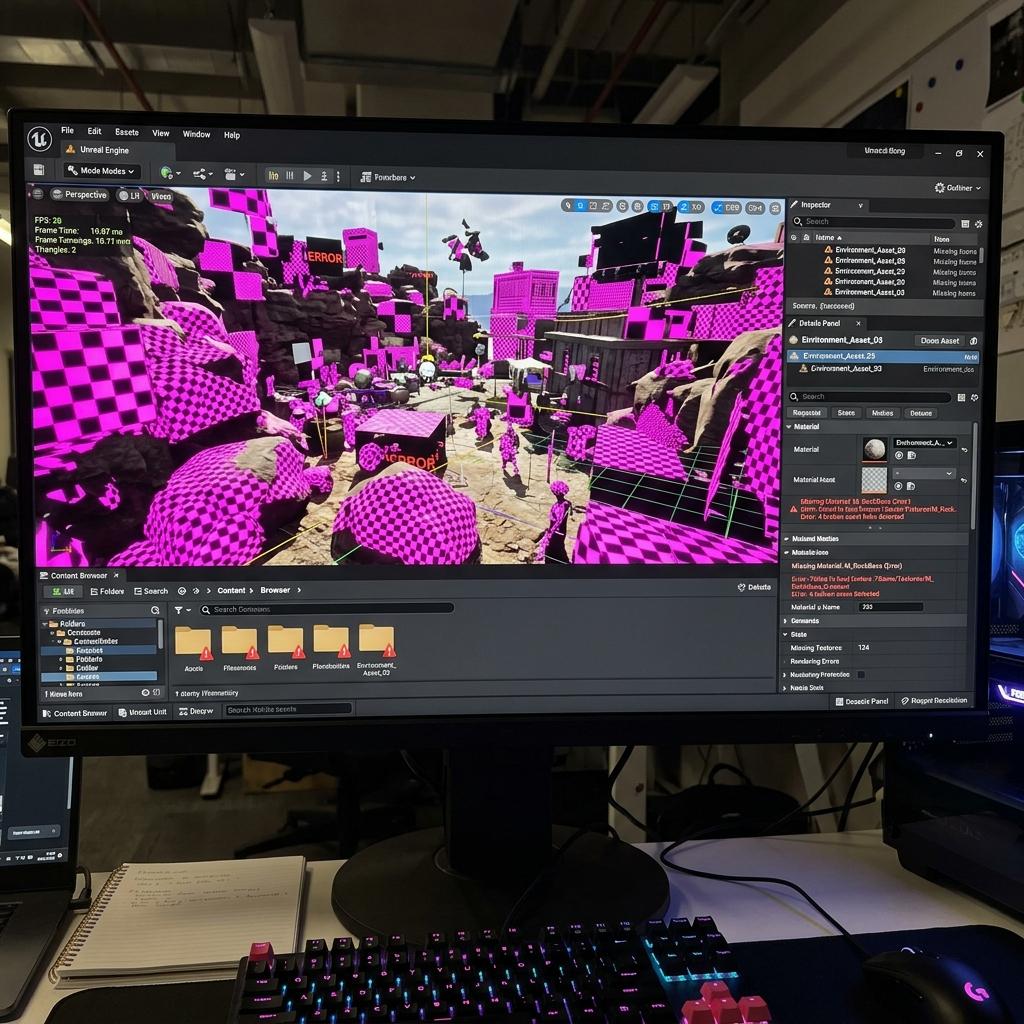
When 3D rendering engines encounter unlinked asset references or render pipeline shader mismatches, they display glaring magenta pink or black checkerboard fallback textures.
Contrary to popular belief, an error texture is not a sign of corrupted 3D geometry. It is a deliberate diagnostic mechanism engineered into modern graphics pipelines to alert developers that a material shader cannot successfully compile or locate its dependent image data. Below is the multi-engine technical guide to diagnosing and fixing error texture bugs across Unity, Blender, and Unreal Engine 5 in under five minutes.
What an Error Texture Actually Means Across Different 3D Engines
When the GPU attempts to render a polygon, it executes the assigned shader program. If that shader encounters a critical failure during execution, rendering engines replace the surface with an unmistakable visual indicator rather than crashing or rendering invisible polygons.
Three distinct rendering failures trigger error textures:
- Broken Asset Reference GUIDs/UUIDs: The source PNG, TGA, or EXR image file was moved, renamed outside the editor, or deleted from disk, leaving the material pointing to a non-existent Global Unique Identifier.
- Render Pipeline Shader Incompatibility: A material created for Unity’s Built-in Render Pipeline is loaded into a Universal Render Pipeline (
URP) or High Definition Render Pipeline (HDRP) project. Because the underlying HLSL/Cg syntax differs fundamentally, the GPU defaults to the glowing magenta pinkErrorShader. - Missing or Corrupted Shader Compiles: In Unreal Engine or Godot, syntax errors within custom node graphs or uncompiled shader caches force the engine to substitute the grey-and-green checkerboard
WorldGridMaterialor a neon magenta unlit material.
[3D Engine Error Texture Evaluation Pipeline]
Attempt to Render Mesh Surface
               │
               ▼
[Check 1: Does Target Shader Compile for Active Render Pipeline?]
       ├── NO (Pipeline Mismatch)  ──> Output Glowing Magenta Pink Error Shader (Unity/HDRP)
       └── YES                     ──> Proceed to Asset Check
               │
               ▼
[Check 2: Can GPU Resolve Source Texture GUID / File Path?]
       ├── NO (File Moved/Missing) ──> Output Checkerboard / Black Texture (Blender/UE5)
       └── YES                     ──> Render Clean PBR Surface
Step-by-Step Solutions to Resolve Error Textures
Because error textures manifest across different software architectures, follow the specific diagnostic procedure for your active 3D development environment.
1. Re-linking Broken UUIDs and Missing Asset References in Unity
- Click on the magenta pink mesh in your Unity Scene view and look at the Inspector panel.
- Under the Mesh Renderer component, check the Materials array. If the material box displays
Hidden/InternalErrorShaderor shows a yellow warning triangle readingMissing (Material), the material asset itself was deleted. - If the material exists but displays glowing pink, double-click the material asset to open its shader properties.
- Check the Base Map or Albedo texture slot. If it reads
None (Texture 2D)or displays a missing reference box, the source image file was disconnected. - In your Project window, search for the original texture file. Drag and drop the texture directly back into the Base Map slot. If the file was moved outside Unity, copy it back into
Assets/Textures/and reassign it.
2. Fixing Pink Render Pipeline Mismatches in Unity (URP and HDRP)
If you imported an asset store pack or legacy project containing standard shaders into a modern URP or HDRP project, you must convert the materials up to your active pipeline.
- Go to your top menu bar and select Edit > Render Pipeline > Universal Render Pipeline (or High Definition Render Pipeline).
- Choose Upgrade Project Materials to UniversalRP Materials (or
Upgrade Selected Materialsif you have specific pink assets selected). - When prompted by the confirmation window, click Proceed. Unity will automatically scan every material using the legacy
Standardshader and rewrite its properties to useUniversal Render Pipeline/Lit. - For custom shaders that do not automatically upgrade, open the material Inspector, click the Shader dropdown at the very top, and manually reassign it to Universal Render Pipeline > Lit (or HDRP > Lit).
3. Relinking Packed and External Files in Blender
When Blender displays a bright purple or black texture across a model in Material Preview or Cycles viewport, the absolute path to your external image file is broken.
- Go to the top menu bar and navigate to File > External Data > Report Missing Files. Look at the bottom info bar or system console to see exactly which image filenames Blender cannot locate on your hard drive.
- To re-link all broken textures automatically: go to File > External Data > Find Missing Files.
- In the file browser pop-up, navigate to the root directory where your textures or project backups are stored on your hard disk and click Find Missing Files. Blender will recursively search subfolders and reconnect every purple texture with matching filenames.
- To prevent this error permanently when sharing
.blendfiles or rendering on farm nodes, go to File > External Data and check Automatically Pack Resources. This embeds all texture images directly into your binary.blendfile.
Diagnostic Table: 3D Engine Error Texture Cheat Sheet
| Symptom (Visual Indicator) | Active Engine / Software | Primary Root Cause | Immediate Fix Procedure |
|---|---|---|---|
| Glowing Hot Magenta / Neon Pink Surface | Unity (URP / HDRP) or Godot | Legacy Built-in Standard shader loaded inside a modern Scriptable Render Pipeline | Run Edit > Render Pipeline > Upgrade Project Materials or reassign shader to URP/Lit |
| Flat Purple or Violet Unlit Mesh | Blender 3D (Cycles / Eevee) | Absolute file path to external image node (Image Texture) is broken | Run File > External Data > Find Missing Files and point to your texture directory |
Grey/Green Checkerboard (WorldGridMaterial) | Unreal Engine 5 | Master material failed to compile due to missing node links or broken shader syntax | Open Material Editor, check Stats/Log window for red syntax errors, and re-link texture samples |
| Solid Matte Black Mesh in Viewport | Blender or Unity | Missing light maps, zeroed UV channel bounds, or disconnected normal maps | Verify UV channel 0 exists and ensure normal map texture type is set to Normal map |
Replacing Corrupted Assets with Clean PBR Maps
When an error texture occurs because source files were permanently corrupted or lost from a crashed hard drive, rebuilding the material from scratch is faster than attempting to recover missing UUIDs. Standardizing on clean, production-ready PBR textures ensures your replacement shaders compile on the first try without triggering fallback errors across different render pipelines.
If you need to rapidly generate replacement albedo, normal, and roughness maps to restore broken architectural or environmental assets, streamline your pipeline with our Free Online Normal Map and PBR Generator — Try Clean Plaster Replacement. You can also generate flawless tileable background textures to replace missing floor and wall trim sheets using our Seamless Texture Generator Online.
Error Texture Troubleshooting Quick Checklist
- Check Unity Render Pipeline compatibility (
Built-invsURPvsHDRP). - Run automated material conversion (
Edit > Render Pipeline > Upgrade Project Materials). - In Blender, run
Find Missing Filesto repair broken external texture paths. - Check Unreal Engine Material Editor logs for HLSL node compile failures.
- Verify texture assets exist inside your project folder (
Assets/orContent/).
Related reading: Fix Blender Textures Turn Black After Baking · Missing Texture Troubleshooting Guide · Transparent Textures Rendering Guide · Normal Map Fundamentals