
Importing 3D models you downloaded online (like from Sketchfab or TurboSquid) into Blender should be straightforward. However, a common and frustrating issue occurs when you import an .fbx or .obj file, and your model appears completely white, gray, or aggressively pink. It feels like Blender is actively removing your textures during the import process.
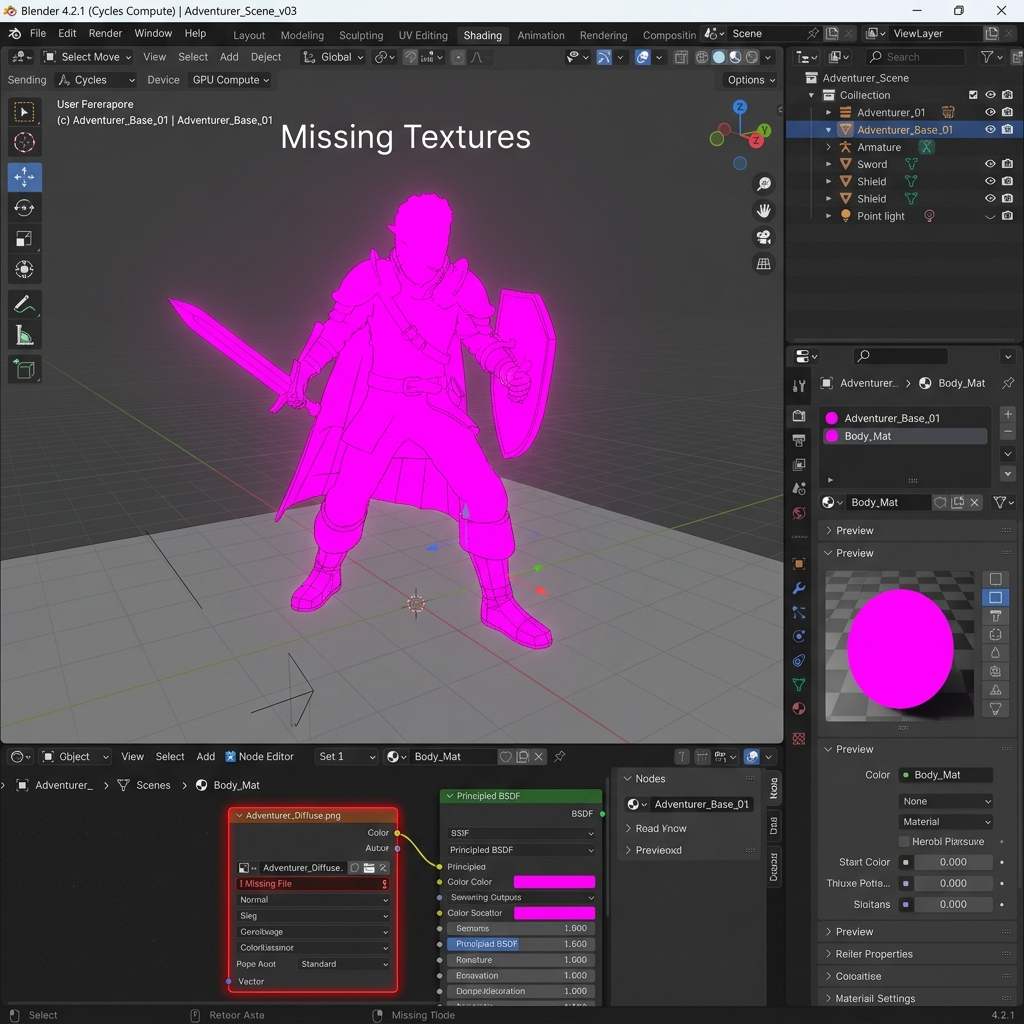 *A bright pink mesh in Blender's viewport is the universal warning sign for a broken texture file path.*
Why This Error Happens
Blender isn’t actually “removing” your textures. The problem lies in how .fbx and .obj formats handle file paths.
When a 3D artist exports an FBX from Maya or 3ds Max, the file stores the absolute path to the texture files on their specific hard drive (e.g., C:\Users\JohnDoe\Desktop\Project\textures\diffuse.png). When you import that same FBX into your Blender scene, Blender looks for that exact C:\Users\JohnDoe... folder. Because that folder doesn’t exist on your computer, the link breaks.
Blender then flags the missing image node, resulting in either a blank material or a bright pink error shader.
Step-by-Step Fixes for Missing Import Textures
Fixing this issue requires helping Blender find where you actually saved the texture images on your computer.
1. The Automatic Fix (Find Missing Files)
If you downloaded a .zip file containing the 3D model and a separate folder of textures, you can ask Blender to automatically search for them.
- Ensure your viewport is set to Material Preview or Rendered mode.
- Go to the top menu bar and click File > External Data > Find Missing Files.
- A file browser window will open. Navigate to the folder where your extracted texture images (e.g.,
.pngor.jpgfiles) are located. - Click the Find Missing Files button.
- Blender will scan that folder, automatically update the file paths in all material nodes, and your textures should instantly appear on the model.
2. The Manual Fix (Shader Editor)
Sometimes the automatic search fails if the file names don’t match perfectly. In this case, you must manually reconnect them.
- Select your imported model in the 3D viewport.
- Open the Shader Editor workspace.
- Locate the pink or black
Image Texturenode connected to thePrincipled BSDFBase Color. - Click the Folder Icon (Open Image) directly on that node.
- Browse your hard drive for the correct Diffuse or Albedo texture map and open it.
- Repeat this process for Normal maps and Roughness maps if they are also missing.
3. Extracting Embedded Textures
Occasionally, an FBX file actually contains the textures embedded inside the file itself, but Blender fails to unpack them automatically.
- Import your FBX file.
- Go to File > External Data > Unpack Resources.
- Choose Write files to current directory (or create a new folder).
- Blender will extract the hidden textures from the FBX and automatically link them to your material.
Diagnostic Reference Table
Use this troubleshooting matrix if your imported textures are still misbehaving:
| Symptom (现象/报错) | Primary Cause (根本原因) | Immediate Solution (快速解决方案) |
|---|---|---|
| Model is bright pink | Broken absolute file path | Use File > External Data > Find Missing Files and point to your texture folder. |
| Model is transparent or invisible | Alpha channel misread during import | In Material Properties, change the Blend Mode from Alpha Blend back to Opaque. |
| Textures look extremely washed out | Wrong Color Space | Ensure your Base Color node is set to sRGB, and Roughness/Normal nodes are set to Non-Color. |
Upgrading Your Imported Assets
Sometimes, fixing the texture paths reveals that the original textures provided with the downloaded model are low resolution or lack proper PBR depth.
If you need to rapidly generate high-quality replacement normal maps and PBR textures for imported props, power up your pipeline with our Free Online Normal Map and PBR Generator — Try Rusty Metal. You can also generate fully tileable environment materials to place your imported models on using our Seamless Texture Generator Online.
Related reading: Missing Texture Troubleshooting Guide · Blender Textures Turn Black After Baking · Blender Texture Button Missing