
We’ve all been there: you import a beautiful transparent material, connect the Alpha channel in the Shader Editor, and suddenly the entire object becomes a ghost, rendering too transparent or showing bizarre layering artifacts in the viewport.
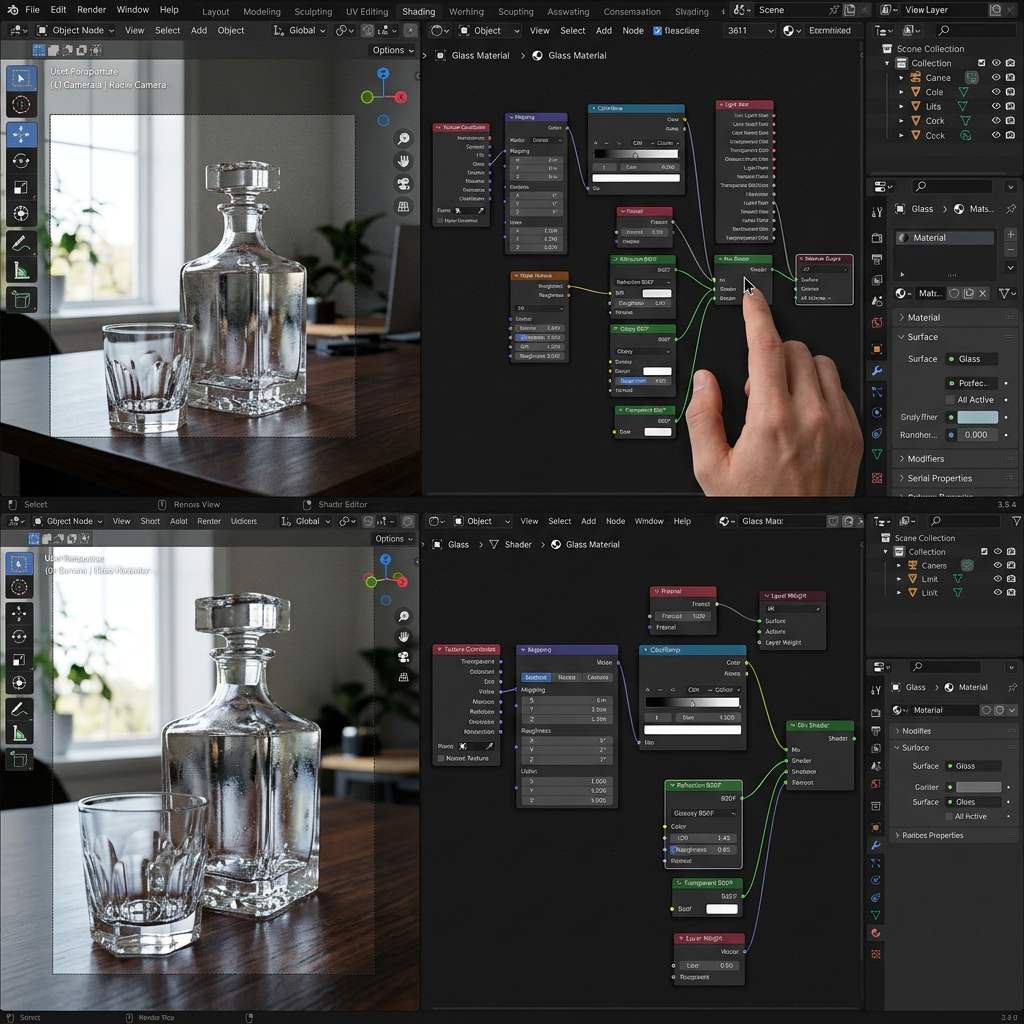 *A typical Blender viewport issue where transparent textures fail to render their depth and opacity correctly.*
Why This Error Happens
In Blender, especially when using the Eevee render engine, transparency does not work out of the box by simply plugging in an Alpha map. Eevee uses rasterization, which means it relies on explicit material Blend Mode settings to calculate how objects overlap and light passes through them. If your texture is too transparent, it’s usually because the Blend Mode is set incorrectly, or the Alpha value in your Principled BSDF node is misconfigured.
Another common culprit is incorrectly formatted PBR textures where the base color has pre-multiplied alpha that Blender misinterprets, resulting in a washed-out, overly transparent look.
Step-by-Step Fixes
1. Change the Material Blend Mode (Eevee)
This is the most common fix for overly transparent or glitchy textures in the Eevee viewport.
- Select your object and go to the Material Properties tab (the red globe icon).
- Scroll down to the Settings panel.
- Change the Blend Mode from
Alpha BlendtoAlpha HashedorAlpha Clip.Alpha Clipis perfect for hard-edged transparency (like leaves or fences). Set the Clip Threshold to0.5.Alpha Hashedis better for soft transparency (like smoke or dirty glass).
- Do the same for the Shadow Mode if your object is casting weird transparent shadows.
2. Verify Shader Node Connections
A common mistake is plugging the texture’s Color output directly into the Alpha input of the Principled BSDF without a proper mask.
- Open the Shader Editor.
- Ensure your texture node is connected correctly: the texture’s
Alphaoutput should go into the Principled BSDF’sAlphainput. - If you are using a separate Opacity map (a black-and-white image), change its Color Space to
Non-Color. Connecting an sRGB image into the Alpha channel will alter the contrast, making the texture too transparent.
3. Adjust the Transmission and Roughness Parameters
If you are trying to make realistic glass or water, and it looks like an invisible ghost rather than solid glass, you need to adjust physical properties.
- Ensure
Transmissionis set to1.0in the Principled BSDF. - Set the
Roughnessto a low value, like0.05to0.1. - Critical step: Set the
IOR(Index of Refraction) to1.45for glass or1.33for water. An IOR of1.0results in zero refraction — the material renders like empty air, with no bending or distortion of background objects whatsoever. The glass will look hollow and flat, not physically wrong per se, but completely unconvincing.
Diagnostic Reference Table
| Symptom | Primary Cause | Immediate Solution |
|---|---|---|
| Material is entirely invisible/ghostly | Blend Mode is stuck on Alpha Blend with overlapping faces | Change Blend Mode to Alpha Hashed or Alpha Clip |
| Glass material bends no light | IOR is set to 1.0 | Set IOR to 1.45 (Glass) or 1.33 (Water) |
| Transparency is too soft or greyish | Opacity map is set to sRGB | Change the Opacity Map’s Color Space to Non-Color |
Prevention Tips
Always verify your texture map formats before importing. When working with PBR workflows, ensure your Opacity and Roughness maps are strictly black-and-white and imported as Non-Color data. If you’re building transparent materials for game engines, bake your opacity directly into the Albedo’s Alpha channel to save memory.
If you need to rapidly generate glass, water, or transparent surface normal maps and PBR textures, power up your pipeline with our Free Online Normal Map and PBR Generator — Try Transparent Glass. You can also generate fully tileable background textures using our Seamless Texture Generator Online.
Related reading: Best Normal Map Creator Online · Roughness Map Guide · What is a Tileable Texture?