
Few things in technical art are more disheartening than attempting to reskin a rigged character or animated game asset with AI. You upload a carefully weighted .glb or .fbx avatar into a standard generative texture tool, type a prompt for sci-fi carbon armor, and watch in horror as the output file returns completely frozen. The armature has been stripped, vertex weight groups are deleted, and the existing UV unwrap is scrambled into an unrecognizable jumble of stretched pixels.
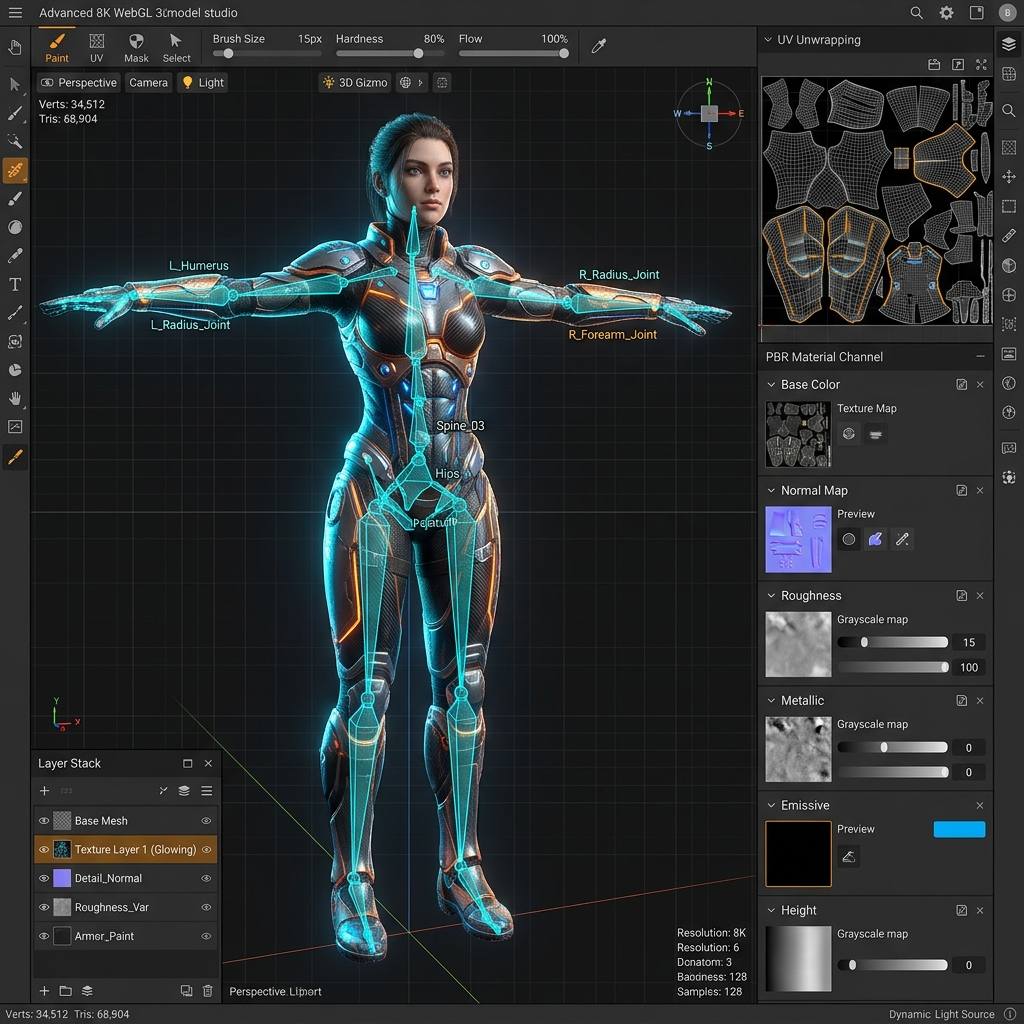
Advanced WebGL 3D texturing preserves the original armature, skeletal bones, and UV layouts while baking real-time PBR material channels.
For game developers, VRChat avatar creators, and modders, a texture tool that breaks rigging is useless. Retexturing existing 3D models requires an architecture that separates texture synthesis from skeletal mesh topology. Here is the definitive guide on using an AI texture generator for 3D models to produce production-grade PBR surface maps while keeping your skeletal hierarchies 100% intact.
Why Traditional AI Texturing Destroys Rigged Characters
Most early AI texturing tools were built around neural view-stitching or point cloud voxelization. When processing an input mesh, these tools make three fatal pipeline errors:
- Skeletal Armature Stripping: Standard diffusion models convert the input mesh into a static vertex buffer to perform screen-space camera re-projections. In doing so, glTF
skins,joints, andinverseBindMatricesnodes are permanently discarded. - Global Prompt Bleed: Applying a single prompt like “weathered leather jacket and steel armor” to an entire model results in messy bleeding. The character’s face ends up with leather textures, and the fabric pants inherit metallic reflections.
- Flat Albedo Hallucination: AI image models natively understand color, not physics. They bake highlights and ambient shadows directly into the diffuse image, producing an asset that looks completely unnatural when placed under dynamic lights in Unreal Engine 5 or Unity.
Achieving studio-quality results requires a non-destructive workflow that operates directly on the model’s existing UV coordinates while preserving all underlying skinning weights.
The Non-Destructive GLB Retexturing Architecture
Modern browser-based 3D texturing pipelines, such as the one implemented in our Model Texture studio, resolve these technical hurdles through four discrete mechanisms. Each mechanism targets a specific layer of the glTF 2.0 data model — skinning buffers, UV attributes, material pointers, and PBR channel derivation — rather than treating the file as a flat pixel canvas. The result is a complete texture overhaul that the game engine reads as a legitimate, production-sourced material update rather than a destructive mesh replacement.
[Non-Destructive AI 3D Retexturing Architecture]
(Existing Rigged GLB/GLTF Model)
        │
        ├──> [Skinning & Bone Hierarchy Cache] ──── (Untouched Joint Hierarchy)
        │
        ├──> [Sub-Mesh / Component Isolation] ─── (Select: Armor / Mask / Skin)
        │
        ▼
[UV-Conformal Generative Diffusion (Nano Banana 2.1)]
        │
        ▼
[Real-Time PBR Map Extrapolation Engine]
   ├─ Tangent-Space Normal Map (Flip Y / OpenGL & DirectX)
   ├─ Perceptual Roughness Map
   ├─ Cavity Ambient Occlusion (AO) Map
   ├─ Physical Metallic Map
   └─ Surface Micro-Height Displacement
        │
        ▼
[Re-Packaged GLB with Preserved Skeletal Rig & Animations]
1. Preserving Bone Hierarchies and Vertex Weights
In the glTF 2.0 specification, skeletal animation relies on JOINTS_0 and WEIGHTS_0 vertex attribute arrays linked to an armature node hierarchy. A non-destructive texturing engine locks these buffers in memory during the generation pass. Only the TEXCOORD_0 (UV coordinates) and the assigned material texture pointers are updated upon export. The character can immediately play run, idle, or combat animations with zero weight paint degradation.
2. Sub-Mesh Isolation and Detachable Element Painting
Complex game characters are rarely a single monolithic mesh; they consist of multiple components (hair, eyes, jacket, boots, hard-surface pauldrons). The studio interface allows technical artists to:
- Click directly on viewport sub-meshes to isolate specific material IDs.
- Detach Elements virtually to generate targeted textures for a specific armor plate without altering surrounding organic skin tones.
- Assign distinct prompts and material properties per component while maintaining uniform world-space lighting.
3. Real-Time Tangent-Space PBR Map Baking
A game engine does not merely render a color map; it computes light interaction via Physically Based Rendering (PBR). Once the AI generates the high-resolution base color, our integrated shader engine extracts a full 5-channel PBR suite in real time:
- Normal Map: Calculates microscopic surface vectors for seams, rivets, and fabric weave without adding polygonal density.
- Roughness Map: Derives surface micro-facets, distinguishing between high-gloss lacquered armor (
0.05 - 0.15) and matte wool textiles (0.75 - 0.90). - Metallic Map: Strictly enforces binary dielectric vs conductor values (
0.0or1.0) to avoid grey, unrealistic mud on non-metals. - AO Map: Bakes ambient contact shadows into crevices, deepening the ambient lighting response under indirect illumination.
4. The Flip Y Texture Alignment Fix (OpenGL vs DirectX)
A persistent bug in 3D pipelines is the vertical orientation mismatch between graphics APIs. WebGL, Three.js, and OpenGL expect texture coordinate origins at the lower-left, while DirectX and Unreal Engine invert the Green (Y) channel. Our built-in Flip Y utility prevents normal maps from appearing inverted (where dents pop outward like plastic blisters) and ensures UV maps align correctly on export.
AI 3D Model Retexturing Diagnostic Table
When retexturing existing 3D assets, refer to this troubleshooting matrix to quickly resolve common rigging and texture artifacts:
| Symptom / Error | Root Cause | Immediate Solution |
|---|---|---|
| Rig / Armature missing on exported GLB | Generator performed full-mesh retopology and stripped skinning nodes | Use a non-destructive UV texture workflow that preserves glTF skins and joints arrays |
| Normal map appears inverted / popping out | DirectX vs OpenGL green channel mismatch | Toggle the Flip Y setting or invert the Green (G) channel in shader parameters |
| Texture bleeding across UV seams | UV island margins are narrower than 8 pixels, causing mipmap bleed | Enable texture dilation / edge margin expansion to at least 16px padding |
| Global prompt overwrites character skin | Uniform prompt execution without sub-mesh masking | Use Component Selection or Detach Element to isolate clothing before prompting |
| Material looks sterile or plastic in game engine | Only diffuse color was baked; roughness and metallic default to 0.5 | Generate dedicated Normal, Roughness, and AO maps; calibrate dielectric materials to metallic 0.0 |
Step-by-Step Guide: Retexturing a Rigged GLB Asset
Follow this structured five-step workflow to retexture any character or prop model:
- Upload and Inspect UV Readiness: Load your
.glbor.gltfasset into the viewport. Toggle the UV Wireframe overlay to verify that all mesh islands are properly unwrapped with no overlapping UV coordinates. Confirm that the Bones Preserved status badge illuminates. - Isolate Target Sub-Components: If retexturing a specific element (e.g., an avatar’s combat vest), select the component from the dropdown or click directly on the mesh in the 3D viewport.
- Formulate a Descriptive Material Prompt: Specify surface materials, micro-textures, and weathering details. For example:
tactical ballistic nylon vest, hexagonal Kevlar pattern, matte olive drab, edge wear, military prop. - Calibrate PBR Sliders: Fine-tune the live PBR preview parameters:
- Set Roughness Strength between
0.65and0.80for synthetic fabrics. - Keep Metallic at
0.0for dielectric cloth; raise to1.0only for metal buckles or zippers. - Adjust Normal Filter Step to sharpen high-frequency fabric weaves without introducing noisy pixel grain.
- Set Roughness Strength between
- Export the Production GLB: Click Export GLB to download the consolidated binary file containing your updated PBR materials, preserved bone rig, and embedded animation tracks.
PBR Material Parameter Calibration Matrix
Use these physically verified values when tuning material parameters for your retextured assets:
| Material Type | Base Color (sRGB) | Roughness Range | Metallic Value | Normal Map Intensity |
|---|---|---|---|---|
| Matte Tactical Fabric (Nylon / Kevlar) | Mid-tone olive, navy, or charcoal | 0.70 – 0.85 | 0.0 (Strict Dielectric) | High (1.4 – 1.8) for weave depth |
| Polished Anodized Metal / Sci-Fi Armor | Deep gunmetal or saturated accent | 0.15 – 0.30 | 1.0 (Full Conductor) | Moderate (0.8 – 1.2) for bevels |
| Weathered Painted Metal (Crates / Props) | Chipped paint base with dark steel undercoat | 0.40 – 0.60 | 0.0 on paint, 1.0 on chips | High (1.5 – 2.0) for scratch edges |
| Natural Worn Leather (Boots / Belts) | Rich umber or tan with micro-grain | 0.45 – 0.65 | 0.0 (Strict Dielectric) | Moderate (1.0 – 1.3) for pores |
Retexture Your 3D Models Online
You no longer need to spend days manually unwrapping UV islands or hand-painting textures in complex desktop software. Experience fast, non-destructive 3D model reskinning directly in your browser using our AI 3D Texture Generator.
If you also need to generate completely custom seamless textures or create production normal maps for your environment props, accelerate your pipeline with our Free Online Normal Map and PBR Generator — Try Tactical Fabric Weave or design tileable surface patterns with our Seamless Texture Generator Online.
Related reading: How to Texture VRChat Avatars · Roughness Map Guide · AO Map Explained · Normal Map Values and Channels