
Every technical artist and indie game developer has experienced the same frustration: you test an AI 3D generator with high hopes, upload a concept sketch, and receive a model that looks passable from the front but melts into a chaotic clump of non-manifold triangles on the back. When you import the raw file into Unity or Unreal Engine 5, the draw call debugger screams, the polycount exceeds 350,000 unindexed tris for a simple wooden prop, and the mesh lacks usable UVs for PBR texturing.
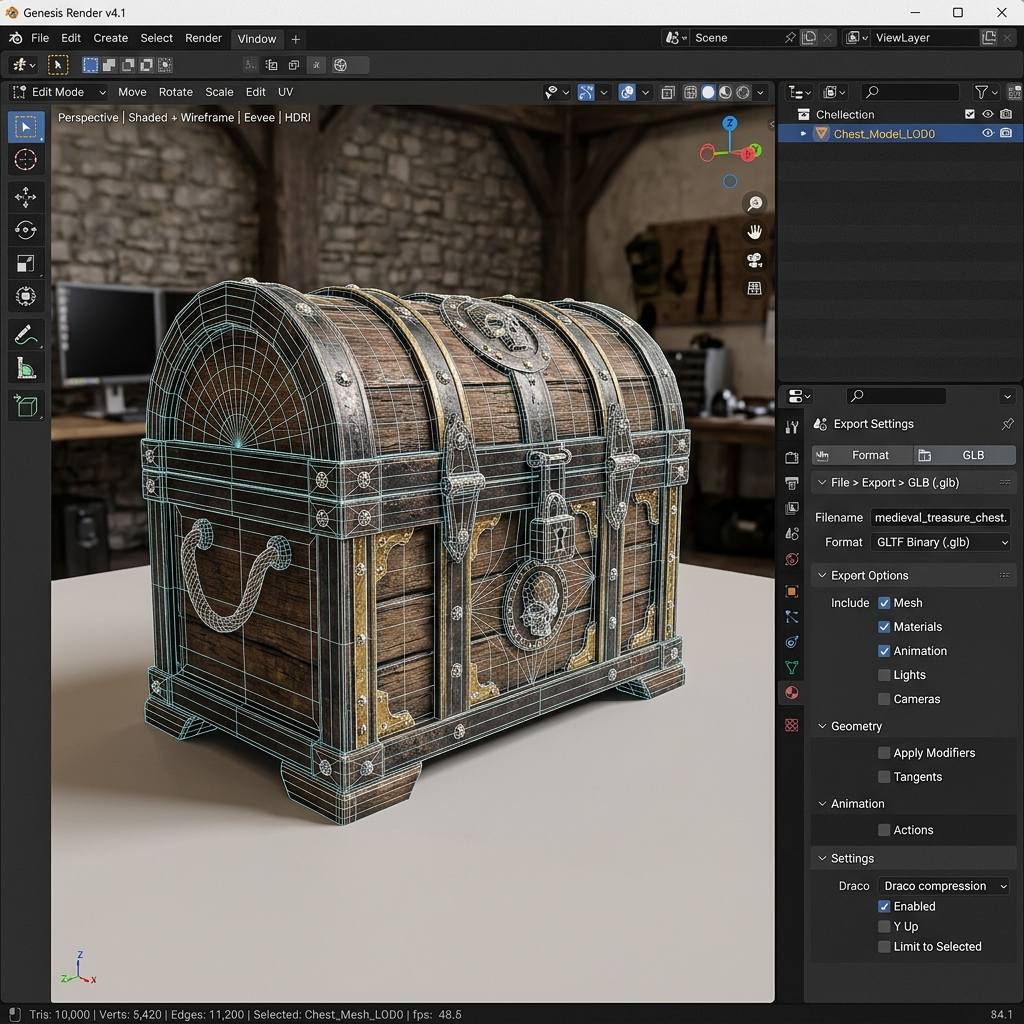
Production-ready game assets generated via Tripo3D v3.1 with strict triangle constraints, quad remeshing, and embedded PBR texture channels.
Bridging the gap between raw generative AI geometry and engine-ready assets requires understanding how modern neural reconstruction engines like Tripo3D v3.1 handle surface topology, view extrapolation, and polygon budgets. Here is the exact technical pipeline to turn 2D reference images into production-grade GLB and FBX models without hours of manual cleanup.
Why Raw AI 3D Meshes Fail Game Engine Standards
Traditional neural radiance fields (NeRF) and basic Gaussian splatting algorithms reconstruct spatial density rather than clean polygonal surfaces. When these representations are converted to polygonal meshes via standard Marching Cubes, three critical production failures occur:
- Occlusion Blind Spots: A single front-facing camera angle leaves the back and side profiles completely occluded. Older generative tools hallucinate chaotic, concaved geometry on hidden faces.
- Dense Non-Manifold Geometry: Raw AI meshes frequently feature zero-area faces, internal overlapping polygons, and unstitched boundary loops that crash real-time physics engines and cause shadow artifacting.
- Absence of Triangle Budgets: Mobile titles, VR experiences, and real-time multiplayer worlds operate under strict Level of Detail (LOD) budgets. A background prop cannot consume 80,000 triangles without killing mobile GPU frame times.
Overcoming these limitations requires a generator that enforces multi-view projection consistency and strict polycount capping prior to mesh export.
The Tripo3D v3.1 Engine Pipeline Breakdown
The Tripo3D v3.1 architecture introduces a structured four-stage synthesis pipeline designed specifically around game engine constraints. Unlike earlier tools that treat 3D generation as a single black-box inference pass, v3.1 separates viewpoint extrapolation, voxel marching, topology optimization, and PBR export into discrete, tuneable stages. Understanding each stage is what separates a 5-minute prop that imports cleanly into Unreal Engine 5 from one that takes three hours of manual cleanup in Blender before it is usable.
1. Multi-View Synthesis and Perspective Alignment
Rather than attempting to guess 3D depth from an isolated 2D projection, the engine accepts an orthographic or perspective front image and extrapolates consistent Left, Back, and Right views before voxelization.
[Multi-View Reconstruction Workflow]
(Front Reference Image)
        │
        ├─> [AI Orthographic Extrapolation] ──> (Left Profile View)
        ├─> [AI Orthographic Extrapolation] ──> (Back Profile View)
        └─> [AI Orthographic Extrapolation] ──> (Right Profile View)
        │
        ▼
[Synchronized Voxel Marching & Feature Alignment]
        │
        ▼
[Manifold 3D Surface Mesh Extraction]
By establishing geometric anchors across all 360 degrees, the resulting mesh avoids the dreaded “melted backside” artifact and maintains structural symmetry across mechanical seams, weapon cross-sections, and character silhouettes.
2. Polycount Budget Allocation (5K, 10K, and 20K Tris)
Controlling geometry density at the point of synthesis avoids the destructive collapse caused by post-process decimation modifiers. Tripo3D provides three distinct operational tiers:
- 5,000 Tris (Mobile and Light Props): Optimized for mobile game engines (Vulkan/Metal), VR standalone headsets (Meta Quest), and dense background clutter where draw call overhead must stay minimal.
- 10,000 Tris (Universal Asset Standard): The sweet spot for third-person props, interactive modular environment pieces, and indie PC titles. Preserves bevel edge highlights without taxing the rasterizer.
- 20,000 Tris (High-Res Hero Assets): Intended for first-person weapons, hero props positioned near the camera frustum, and cinematics requiring crisp physical bevels before normal map baking.
3. Topology Optimization: Standard vs Fine Quad Mesh
For assets destined for skeletal deformation or manual UV editing in Blender, quad-dominant topology is mandatory. While triangular meshes suffice for static rocks and architectural masonry, quad topology enables:
- Clean edge loop selection across seams.
- Predictable subdivision without surface pinching.
- Artifact-free tangent space normal map baking.
Configuring the generation tier to Fine Quad Mesh forces the retopology solver to align edge flow along surface curvature contours, eliminating the zigzag triangle artifacts typical of early AI tools.
Asset Specification and Polycount Allocation Matrix
To maintain 60 FPS performance across target platforms, map your asset categories to the following production targets:
| Asset Type | Recommended Tri Budget | Tripo3D Mesh Tier | Target Runtime Engine | Target PBR Channels |
|---|---|---|---|---|
| Small Clutter / Loot Props | 1,500 – 3,500 Tris | Standard (5K Budget) | Mobile / WebGL / Three.js | Albedo, Roughness |
| Modular Crates / Barrels | 3,500 – 6,000 Tris | Standard (5K Budget) | Unity URP / Godot 4 | Albedo, Normal, Roughness |
| Interactive Props / Weapons | 8,000 – 12,000 Tris | Fine Quad (10K Budget) | Unreal Engine 5 / Unity HDRP | Albedo, Normal, Roughness, Metal, AO |
| Hero Vehicle / Exterior Statue | 18,000 – 22,000 Tris | Fine Quad (20K Budget) | PC / Console Desktop (UE5 Nanite) | Full 5-Channel PBR Set |
Step-by-Step Engine Integration: Blender and Unity
Once you download your generated GLB or FBX file from the 3D model generator, follow these exact verification steps before committing the file to your project repository:
- Verify Face Normals: Open Blender 4.x, import the GLB file (
File > Import > glTF 2.0), select the mesh in Edit Mode (Tab), and pressShift + Nto recalculate face normals outward. Check the Face Orientation viewport overlay to ensure no red inverted faces exist. - Inspect UV Island Padding: Switch to the UV Editing workspace. Ensure island margins maintain at least
16pxof padding at 2048x2048 resolution to prevent mipmap texture bleeding at low LOD distances. - Validate Material Slots: Game engines run one draw call per unique material slot. Verify that the asset uses a single consolidated PBR material rather than fragmented multi-material assignments.
- Export Clean FBX/GLB: In Blender’s export dialog, enable
Apply Modifiers, set Forward to-Z Forward, and Up toY Upfor Unity and Three.js pipelines.
Generating Production-Ready 3D Assets
Transitioning from raw 2D concept art to game-ready 3D geometry no longer requires manual retopology passes for everyday props. You can generate optimized 3D geometry immediately using our AI 3D Model Generator powered by the Tripo3D v3.1 engine.
If your asset requires specialized micro-surface detail or industrial wear, combine your model with custom PBR materials from our Free Online Normal Map and PBR Generator — Try Weathered Bronze Patina, or create tileable environment ground textures with our Seamless Texture Generator Online.
Related reading: Best Normal Map Creator Online · Free PBR Textures Workflow Guide · Convert Albedo to Normal Map · Blender Normal Map Setup