
Every 3D artist and indie game developer has scavenged stock asset repositories for free PBR textures. You find a set of maps that looks great in a thumbnail render, download the zip archive, plug the textures into your Blender Principled BSDF or Unreal Engine material instance, and your asset looks wrong. Highlights burn out into milky gray flares, mortar recesses bulge outward instead of indenting, and dark shadows remain permanently baked onto surfaces even when lights move.
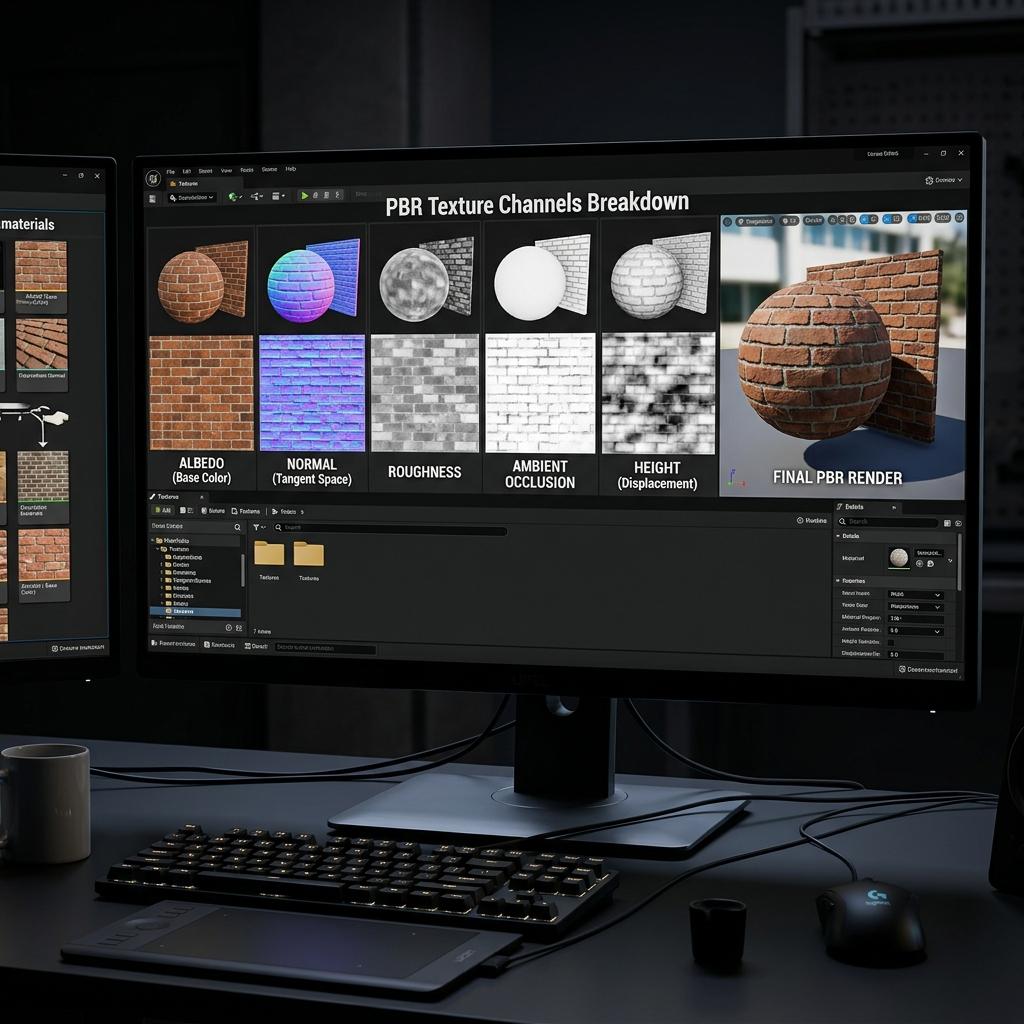
A complete PBR texture set requires validating linear gamma and tangent orientations across every individual texture channel before engine import.
Free PBR asset packs often suffer from non-standard color space exports, conflicting normal map conventions, and baked environmental lighting. Knowing how to audit, sanitize, and pack these texture channels transforms free online assets into production-grade materials. Below is the complete technical pipeline for verifying free PBR texture sets, fixing common pipeline bugs, and generating custom missing maps.
Common Defects in Free PBR Texture Downloads
Before committing third-party texture maps to your production library, evaluate them against these four technical failure points:
[Pipeline Color Space and Channel Audit]
Base Color Map (sRGB Gamma 2.2) ───────────> Color Information (Must be delighted)
Normal Map (Linear / Non-Color)  ───────────> Vector Information (Check Green Channel: Y+ vs Y-)
Roughness Map (Linear / Non-Color) ─────────> Micro-facet Variance (0.0 = Glossy, 1.0 = Rough)
Metallic Map (Linear / Non-Color)  ─────────> Conductor vs Dielectric Mask (Binary 0.0 or 1.0)
Ambient Occlusion (Linear / Non-Color) ─────> Crevice Shadow Mask (Never multiply into Base Color)- Baked Directional Shadows in Albedo (Delighting Failure): Poorly processed scans frequently retain hard cast shadows from sunlight or flash photography. In Physically Based Rendering, the Base Color must represent pure surface reflectance. If shadows are baked into the albedo, your mesh will display conflicting shadows when illuminated by real-time game lights.
- Color Space Inconsistencies (sRGB vs Linear):
Modern renderers require data textures (Roughness, Metallic, Height, Ambient Occlusion, and Normal maps) to be interpreted in Linear / Non-Color space. When free packs export greyscale maps with an sRGB gamma
2.2curve, midtones are pushed significantly brighter, making semi-gloss materials look completely dull and matte. - Inverted Normal Map Green Channel (DirectX vs OpenGL): Free textures often fail to declare whether the normal map uses OpenGL (Y+ Up, standard in Blender, Maya, and Godot) or DirectX (Y- Down, standard in Unreal Engine and 3ds Max). If you feed an OpenGL normal into Unreal Engine without flipping the green channel, brick seams and screw holes will appear as raised bumps.
- Roughness vs Glossiness Inversion:
Legacy texture sets frequently supply an inverted glossiness map (where white
1.0means mirror smooth) labeled simply as “Roughness”. If your metal surface reflects light like chalk, the texture map is inverted and requires aOne Minusshader inversion.
Free PBR Map Diagnostic and Calibration Matrix
Use this reference table to inspect and correct incoming free PBR texture sets in your image editor or engine import settings:
| Texture Channel | Required Color Space | Bit Depth | Correct Physical Range / Appearance | Quick Fix if Defective |
|---|---|---|---|---|
| Base Color / Albedo | sRGB (Gamma 2.2) | 8-bit / 16-bit | Pure diffuse color without highlights or ambient shadows. Dielectric materials fall between 30 and 240 sRGB. | Run High-Pass filter or Delight shader to neutralize uneven gradients. |
| Normal Map | Linear / Non-Color | 8-bit / 16-bit | Neutral background sits at #8080FF. Red channel points Right (+X), Green points Up (+Y for OpenGL) or Down (-Y for DirectX). | Invert Green (Y) channel in texture settings (Flip Green Channel checkbox). |
| Roughness | Linear / Non-Color | 8-bit | Black (0.0) is absolute mirror polish; White (1.0) is rough matte diffuse scatter. | Use Invert node if glossiness was provided; clamp values using Remap nodes. |
| Metallic | Linear / Non-Color | 8-bit | Strictly binary: #000000 (0.0) for dielectrics (stone, wood, skin); #FFFFFF (1.0) for raw metals. | Clamp with high-contrast threshold; eliminate fuzzy gray values except along transition rust edges. |
| Ambient Occlusion | Linear / Non-Color | 8-bit | Pure white across flat surfaces; localized soft black crevice shading in tight geometric corners. | Combine into engine packed texture (ORM / ARM) for optimized single-sampler lookup. |
Step-by-Step: Packing Free PBR Textures for Game Engines
Sampling five independent texture files (Albedo, Normal, Roughness, Metallic, AO) in a real-time shader creates five separate texture sampler lookups, significantly increasing draw call memory overhead. Industry-standard pipelines pack individual grayscale maps into a single multi-channel RGBA texture:
- Standardize on the ORM / ARM Channel Layout:
- Red Channel: Ambient Occlusion (AO)
- Green Channel: Roughness
- Blue Channel: Metallic
- Alpha Channel (Optional): Height / Displacement or Opacity
- Channel Pack Using Photoshop, GIMP, or Substance:
In Photoshop, create a new document with 3 color channels. Copy the grayscale AO map into the Red channel, the Roughness map into the Green channel, and the Metallic map into the Blue channel. Export the resulting file as a lossless
.pngor compressed.tga. - Configure Unreal Engine 5 Import Settings:
When importing your packed ORM texture into UE5:
- Uncheck sRGB (Linear color interpretation is required for data masks).
- Set Compression Settings to Masks (no sRGB).
- In your Master Material, wire the Red pin to
Ambient Occlusion, Green pin toRoughness, and Blue pin toMetallic.
- Configure Blender Shader Nodes:
In the Blender Shader Editor, add an Image Texture node for your packed ORM file. Set the color space to Non-Color. Add a Separate Color node (
Converter > Separate Color). Wire:Red──> Multiply with Base Color or feed to AO custom shader.Green──>Principled BSDF > Roughness.Blue──>Principled BSDF > Metallic.
[Blender ORM Texture Setup]
[Image Texture: ORM.png (Non-Color)] ──> [Separate Color] ──┬── [R: AO] ──> (Mix Color Multiply)
                                                            ├── [G: Roughness] ──> [Principled: Roughness]
                                                            └── [B: Metallic]  ──> [Principled: Metallic]
Generating Custom Production-Ready PBR Textures
While free texture libraries are helpful for generic surfaces, specific art directions often require bespoke physical materials that stock websites simply do not carry. Rather than spending hours hand-cloning seams and painting height maps in image manipulation software, modern browser-based AI generators can synthesize seamless diffuse textures and compute physically verified normal and roughness maps directly from text prompts or input photos.
If you need to generate production-ready PBR texture sets with calibrated normal, roughness, and height channels, accelerate your asset production with our Free Online Normal Map and PBR Generator — Try Weathered Brick Masonry. You can also generate seamless tileable terrain and architectural surfaces using our Seamless Texture Generator Online.
Free PBR Asset Ingestion Checklist
- Base color inspected for baked shadows and highlights; delighter applied if necessary.
- Normal map green channel verified for target engine (OpenGL for Blender, DirectX for Unreal).
- Roughness, Metallic, and AO textures set strictly to Linear / Non-Color interpretation.
- Metallic channel checked for binary purity (predominantly pure black or pure white).
- Greyscale maps packed into ORM (Occlusion-Roughness-Metallic) textures to conserve samplers.
- File resolution standardized to power-of-two dimensions (e.g., 1024x1024, 2048x2048, 4096x4096).
Related reading: How to Preview PBR Materials Online · Normal Map vs Base Color PBR Guide · Roughness Map Guide · Metallic Map Explained