
We have all been there during tight production deadlines: you have dozens of raw photograph textures, scanned surfaces, or 2D decals sitting in your project folder. Processing them individually—opening Photoshop or Substance Designer, tweaking filters, exporting normal maps, generating roughness textures, removing uneven lighting, and stripping backgrounds one by one—can eat up hours of tedious manual labor. To eliminate this bottleneck, our online material suite now natively supports Batch Processing Queues across all three core production modules: PBR MAPS, SEAMLESS TEXTURE, and TRANSPARENT PNG.
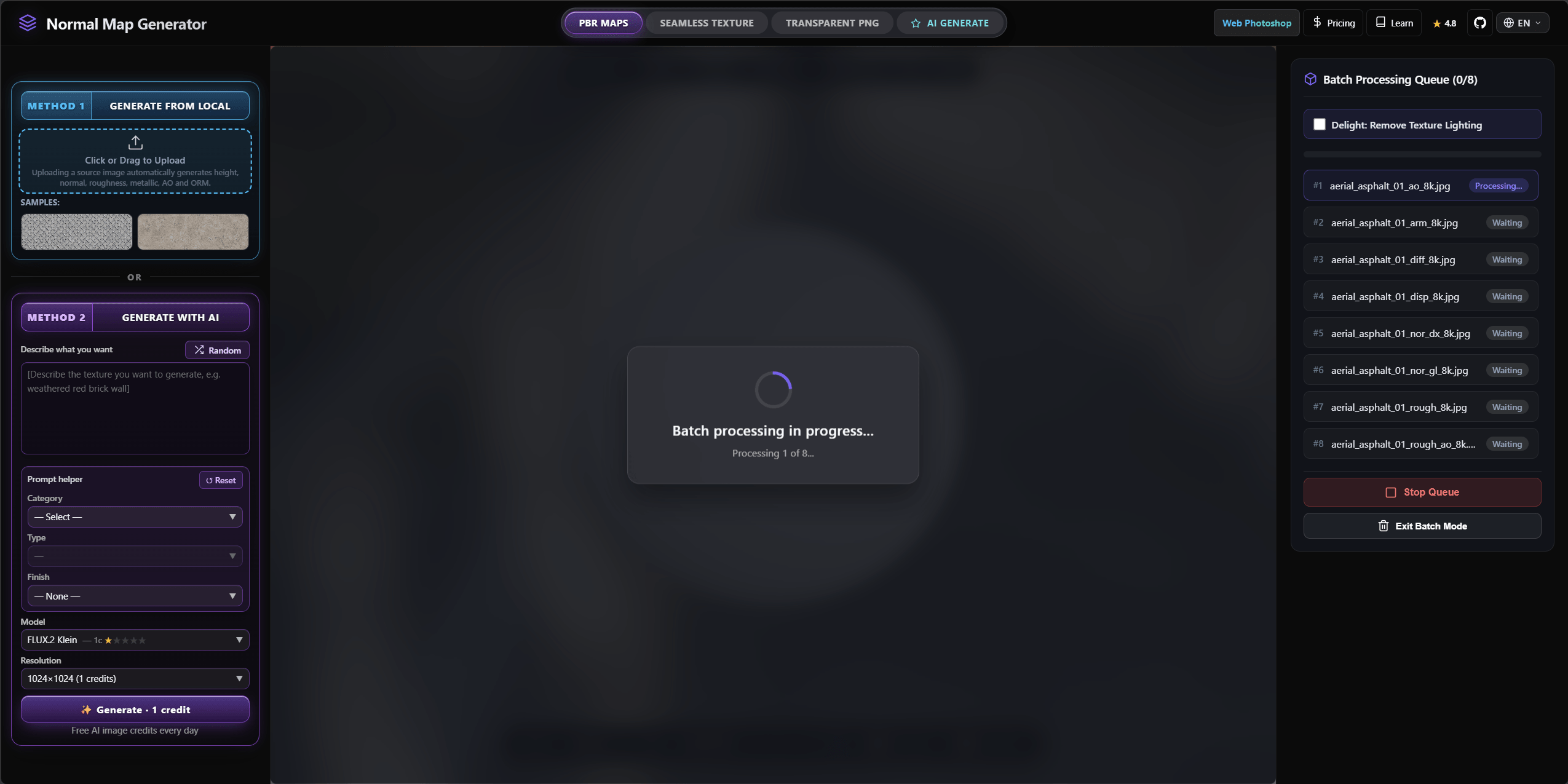 *The new Batch Processing Queue allows you to load multiple albedo textures and generate complete production-ready PBR material sets simultaneously without freezing your browser.*
In this guide, we will examine how to leverage the bulk processing workflow to process dozens of texture assets at once, how our GPU-accelerated local pipeline handles Out-of-Memory (OOM) protection during massive queue executions, and how to troubleshoot common multi-file asset pipeline errors.
1. Batch PBR Maps Generator: Bulk Normal, Roughness, and AO Generation
When building expansive 3D environments for Unreal Engine 5, Unity HDRP, or Blender Cycles, a single asset often requires 5 to 6 dedicated texture passes. When multiplying that across an entire biome or architectural library, manual generation is no longer viable.
Our upgraded PBR MAPS tool now allows you to drag and drop multiple albedo or diffuse images directly into the upload area. The system immediately initializes a Batch Processing Queue, parsing each file independently while maintaining interactive framerates.
Key Advantages of Bulk PBR Generation:
- Simultaneous Multi-Channel Extraction: For every uploaded image, the engine simultaneously computes the Normal Map, Displacement (Height Map), Roughness Map, Ambient Occlusion (AO), and combined Edge / ORM textures.
- Unified Parameter Application: Set your base bump Strength (e.g.,
2.5), Level & Blur filtering, and normal channel orientation (Y+ OpenGL or Y- DirectX) once. The bulk processor automatically applies these precise mathematical adjustments across the entire queued library. - One-Click Package Export: Instead of downloading hundreds of individual files, clicking Download All (.zip) automatically compiles your entire batch into clean, folder-structured archive packages ready for engine import.
2. Batch Seamless Texture Creator: Infinite Tiling with Auto-Delight
Turning raw photographs into seamlessly tileable materials historically required careful clone-stamping and frequency separation. When processing a batch of brick walls, concrete slabs, or fabric scans, uneven illumination across the original photos causes obvious, repetitive brightness grids when tiled across large meshes.
The SEAMLESS TEXTURE batch workspace introduces intelligent multi-image tiling alongside our automated Delight: Remove Texture Lighting feature.
How Bulk Tiling & De-Lighting Works:
- Queue Initialization: Drop multiple organic or hard-surface texture photos into the Seamless workspace.
- Auto-Delight (Lighting Removal): Before edge blending occurs, activate the Remove Texture Lighting option. The algorithm analyzes low-frequency luminance variations across each image and flattens directional highlights and ambient shadows, returning a clean albedo surface.
- Patch Repair & Blending: Set your Patch Size and Patch Repair strength (we recommend a border blend margin of at least
16pxto32pxfor high-frequency textures like gravel or foliage). - Automated Batch Tiling: The queue processes each image sequentially, verifying cross-edge boundary continuity and outputting perfectly seamless, tileable 4K-ready textures.
3. Bulk Transparent PNG Remover: Instant Alpha Background Stripping
For UI designers, VFX artists, and 3D generalists working with foliage cards, UI icons, signature stamps, or decal overlays, removing solid black or white backgrounds across dozens of files is a frequent chore.
The TRANSPARENT PNG batch module is specifically optimized for high-speed alpha channel extraction and background removal.
Whether you need to convert 50 scanned signature logos into transparent watermarks or isolate intricate tree branches for alpha-blended polygon cards, the batch queue evaluates luminance thresholds and edge smoothness across all loaded images in seconds. It outputs pristine PNGs with clean alpha channels and zero edge fringing.
4. Step-by-Step Batch Workflow & Memory Protection
Processing dozens of high-resolution textures simultaneously can easily overwhelm system RAM and GPU VRAM in standard web applications. To ensure rock-solid stability during heavy production workloads, our architecture incorporates strict Out-of-Memory (OOM) safeguarding and chunked file downloading.
Recommended Bulk Processing Workflow:
- Prepare and Load Your Asset Batch
Gather your source textures and drop them into the target workspace (PBR MAPS, SEAMLESS TEXTURE, or TRANSPARENT PNG). The UI will populate the list with individual status indicators (
Waiting,Processing...,Completed, orFailed). - Configure Master Normal & Tiling Parameters
Before starting the queue, establish your baseline metrics. For architectural stone or brick, set Extrusion to
0.05mand ensure your UV padding Margin is set to at least16pxto prevent mipmap bleeding at distance. - Monitor Queue Execution
As the GPU processes each item, real-time progress (
Processing 3 of 15...) is tracked. If you need to add more files or adjust a setting halfway through, you can click Stop Queue at any time without losing completed outputs. - Handle Chunked Archive Downloads (OOM Protection)
When downloading large queues containing dozens of 2K or 4K PBR sets, generating a single massive multi-gigabyte ZIP file inside browser memory can trigger browser crashes. Our engine automatically divides massive queues into smaller, safe archive chunks (e.g., Part 1, Part 2, Part 3).
Important Note: When downloading starts, you will see the prompt: “OOM Protection: Massive texture queue is downloading in chunks. Please select [Allow downloading multiple files] in your browser prompt.” Make sure to click Allow in your browser’s top popup bar so all ZIP volumes download seamlessly.
5. Diagnostic & Troubleshooting Guide
When running batch conversions for 3D game engines or architectural rendering pipelines, minor parameter mismatches can cause visual artifacts. Use the diagnostic matrix below to resolve common multi-file processing issues immediately.
| Symptom (Error / Phenomenon) | Primary Cause (Root Technical Issue) | Immediate Solution (Actionable Fix) |
|---|---|---|
| Entire image bakes black or solid color | Source image has an alpha channel conflict or Metallic is locked at 100% on dielectric surfaces. | Ensure source files are standard RGB images; set Metallic value to 0.0 for non-metal materials (wood, stone, brick). |
| Browser pauses or shows memory warning during bulk download | Total uncompressed texture payload exceeds browser single-tab memory allocation limits. | Allow multi-file downloads when prompted; the system automatically splits archives into safe ZIP chunks via OOM Protection. |
| Visible grid seams appear when texture is tiled in-engine | Source image contained strong uneven lighting or gradient shadows before seamless blending. | Re-run the queue with Delight: Remove Texture Lighting enabled and increase the blend Margin to at least 24px. |
| Normal map bumps appear inverted or indented in Unreal Engine | Green channel mismatch between OpenGL (Y+) and DirectX (Y-) normal mapping standards. | Click the Y- (DirectX) toggle in the parameter panel before running the batch export to invert the green channel automatically. |
6. Supercharge Your 3D Asset Pipeline Today
Eliminating repetitive file handling allows you to focus on artistic direction rather than technical manual labor. Whether you are prepping an entire material library for a game demo or cleaning up client texture assets, our browser-based bulk tools deliver studio-grade results in seconds.
Generate Production-Ready Normal & PBR Maps Now — Try Architectural Floor
Create and Download Polished Seamless PBR Materials Now
Related reading: What is a Normal Map? · Roughness Map Guide · AO Map Explained · Best Normal Map Creator Online