
Converting a standard 2D photograph into a production-grade 3D surface material is a foundational requirement across modern video game development, architectural visualization, and VFX rendering. For decades, technical artists had to choose between slow, high-poly 3D baking in programs like Blender or ZBrush, or using crude 2D height conversion filters in Photoshop that mistakenly interpret color luminance as depth. Today, modern neural vision algorithms allow you to generate normal map from image files directly in your web browser with true surface curvature and tangent-space vector accuracy.
Whether you snapped a photo of weathered castle brickwork on your smartphone, captured a swatch of woven canvas fabric, or downloaded an albedo texture from a library, generating an accurate normal map requires understanding the mathematical difference between grayscale height and directional vector normals. Below is the complete technical guide to converting 2D images into game-ready normal maps.
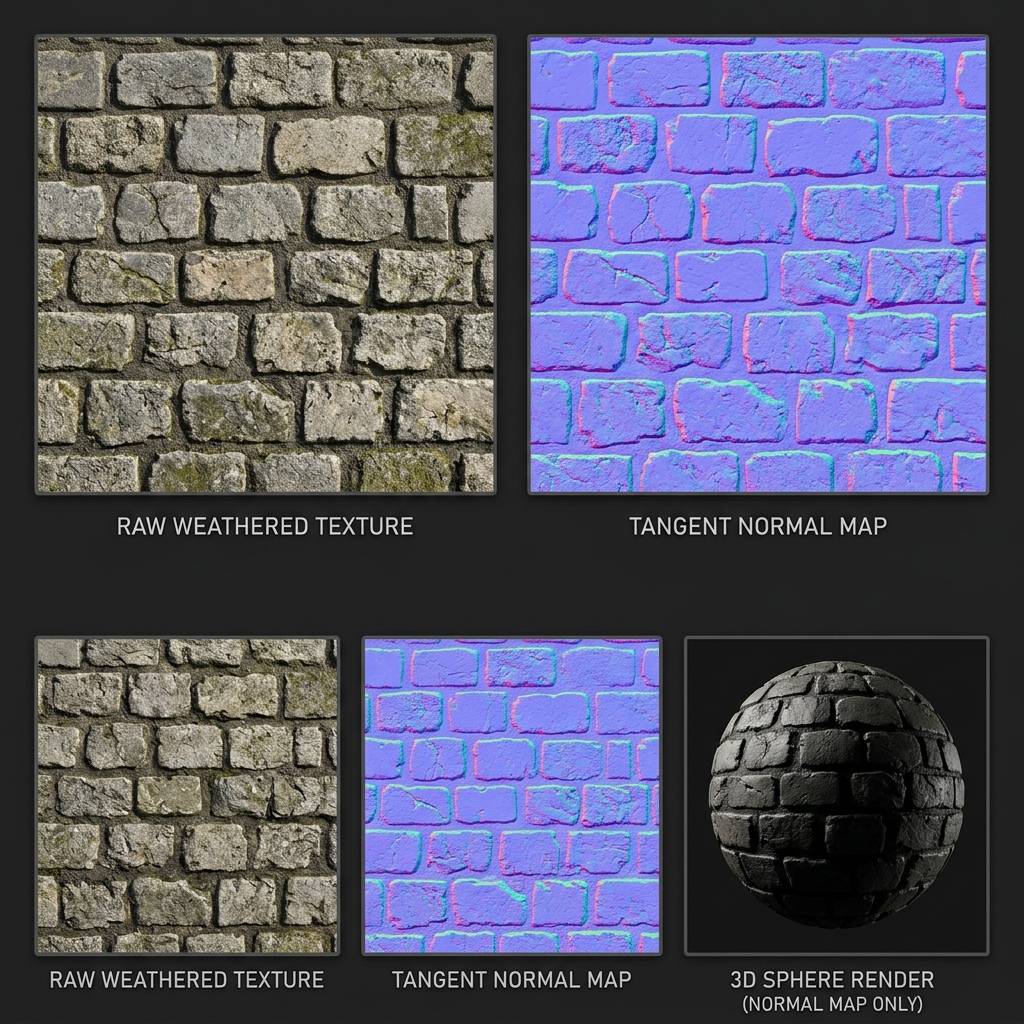
Side-by-side comparison of a 2D photograph converted into a tangent-space normal map and rendered on a real-time 3D PBR sphere.
The Core Problem with Traditional Height-to-Normal Filters
In older legacy tools (such as traditional Photoshop plugins or basic WebGL height filters), normal maps are computed using simple Sobel or Scharr gradient convolution matrices applied to grayscale values. This introduces severe rendering errors:
- Dark Pigment Confusion: A traditional filter assumes that dark pixels are always physically deep, while light pixels are always raised peaks. If your photograph features dark painted text, black grease stains, or natural wood knots, a naive filter cuts deep, unnatural trenches directly through flat geometry.
- Baked Directional Shadows: If your source photo was shot in sunlight, cast shadows on the ground fool crude filters into generating slanted, asymmetrical slope angles.
- Specular Hotspots: Flash photography reflections are miscalculated as violent physical spikes, creating jagged surface noise in real-time game engines.
Neural AI converters solve this by employing monocular depth estimation and material semantics. The AI understands that a black painted number on a white metal crate is completely flat, while a clean mortar groove between stones is physically recessed.
Technical Comparison: Image-to-Normal Conversion Methods
| Conversion Method | Processing Logic | Shadow Handling | Seam Handling | Accuracy Score |
|---|---|---|---|---|
| Naive Grayscale Filter | Pixel brightness gradient (Sobel operator) | Fails (shadows create false holes) | Manual painting needed | 4.2 / 10 |
| High-Poly 3D Baking | Raycasting from 20M polygon sculpt | Perfect (true geometric raycast) | UV seam cage required | 9.8 / 10 (Very slow) |
| Photogrammetry Array | Multi-angle cross-polarized reconstruction | Excellent (eliminates specular glare) | Tedious post-cleanup | 9.4 / 10 (Costly gear) |
| Neural AI Generator (Our Tool) | Monocular depth diffusion + Semantic masking | Decouples lighting from geometry | Automated cyclic boundary wrap | 9.6 / 10 (Instant web) |
Step-by-Step Workflow: Converting Photos to Normal Maps
Follow this production workflow to generate clean, tangent-space normal maps for Unity, Unreal Engine 5, or Blender:
1. Source Image Preparation (De-Lighting)
- Ensure your source photograph is taken as flat and perpendicular (90 degrees) to the surface as possible. Avoid wide-angle fish-eye distortion.
- Crop out non-uniform lighting gradients across the borders. If the photo has a strong directional shadow from sunlight, use an AI de-lighting pass to flatten diffuse luminance.
2. Configure Coordinate Conventions (OpenGL vs. DirectX)
Different 3D engines interpret the Green (Y) channel of normal maps oppositely:
- OpenGL (+Y Up): Used by Blender, Unity, Godot, Maya, and WebGL Three.js.
- DirectX (-Y Down): Used by Unreal Engine 5, 3ds Max, and Source 2.
- If your surface looks inverted in Unreal Engine (cavities appear like bumps), flip the Green channel.
3. Adjust Filtering Radius and Depth Strength
Fine-tune your normal map parameters to match real-world scale:
- Micro-Detail (High Pass): Captures sand grains, cloth weave, and brushed metal grooves. Set kernel radius between
1pxand3px. - Macro-Curvature (Low Pass): Captures large boulder facets, brick bulges, and wall curvature. Set radius to
7pxto15px. - Combine both frequencies to prevent the surface from looking artificially flat or overly noisy.
Generate Normal Maps and Custom PBR Textures Online
Rather than installing heavy desktop software or setting up complex Blender baking node trees, you can convert 2D photos or generate bespoke PBR textures directly in your browser.
If you need to generate production-ready normal maps and PBR textures for this workflow, start with our Free Online Normal Map Generator — Try Weathered Cobblestone Pavement.
You can also generate tileable surface textures for modular environment meshes using our Seamless Texture Generator — Try Limestone Cobblestone Street.
Production Checklist for Imported Normal Maps
- Source image diffuse lighting flattened with specular highlights removed.
- Tangent-space vectors normalized (vector length equals 1.0).
- OpenGL (+Y) vs. DirectX (-Y) coordinate format matched to target game engine.
- Color space set strictly to Linear / Non-Color in game engine shader nodes (never sRGB).
- Texture compression set to BC5 / Normal Map compression to preserve 16-bit vector fidelity.
Related Guides and Reading
- Best Normal Map Creator Online — Comprehensive review of browser and desktop generators.
- How to Create Normal Map from Photo — Photographic capture setup and cross-polarization techniques.
- Normal Map Values and RGB Range Explained — Technical guide to [-1, 1] vector math and 8-bit color packing.
- What is a Tileable Texture: 3D Artists Guide — Eliminating visible tiling seams across modular environment walls.