
Importing normal maps into the Unity game engine (Universal Render Pipeline or High Definition Render Pipeline) seems deceptively straightforward: drag a texture into your project Assets folder and assign it to a material’s Normal Map slot. However, Unity’s underlying Texture Importer applies specialized color-space remapping and channel compression. Misconfiguring a single toggle—such as leaving the texture classified as a generic “Default” sRGB image—results in severe color banding, washed-out lighting, or bizarre black specular seams along mesh polygons.
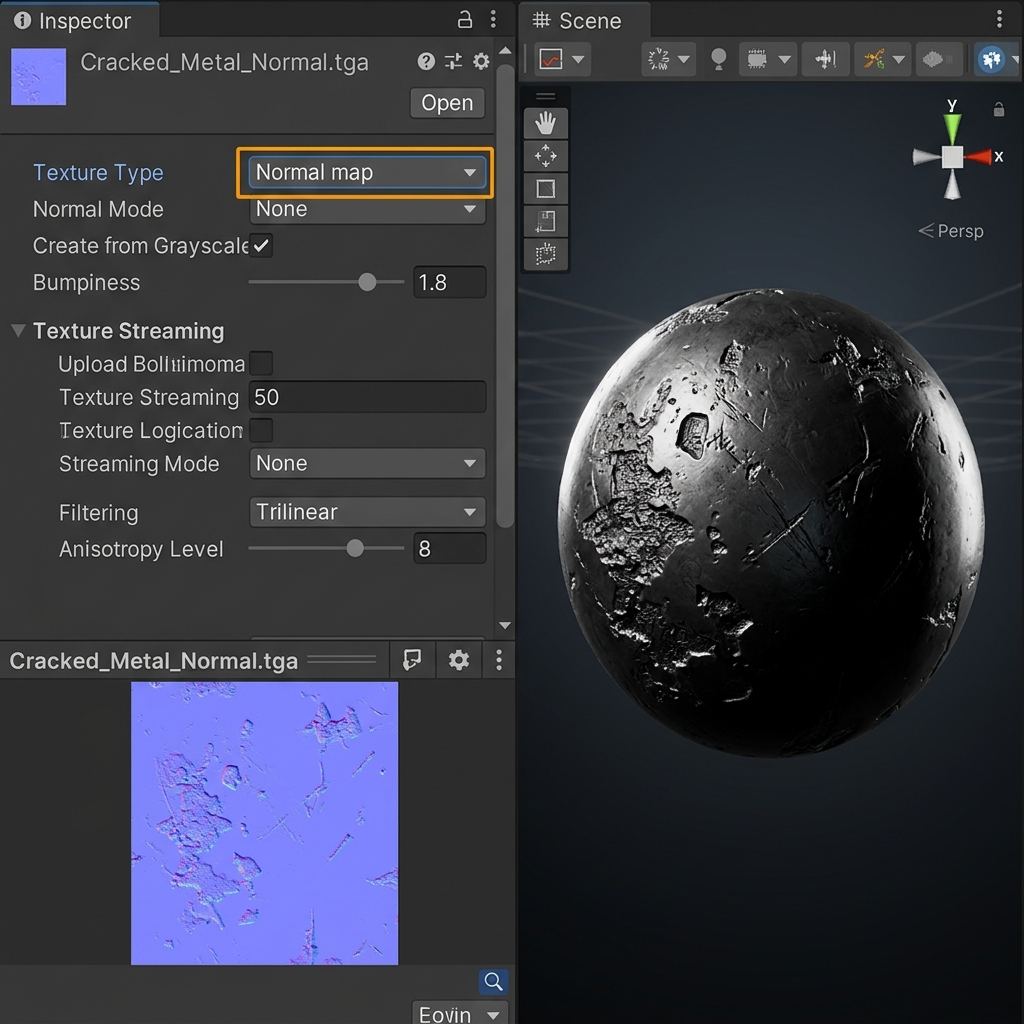
To achieve crisp surface relief across mobile, console, and PC platforms, technical artists must configure Unity’s Texture Importer settings correctly. This guide details the essential parameters: setting Texture Type to Normal map, choosing between BC5 and DXT5nm compression formats, handling tangent space generation, and resolving inverted lighting bugs.
The Core Mechanism: How Unity Decodes Tangent Normal Maps
When Unity encounters a texture flagged as a Normal map, it alters its internal decompression algorithm to save GPU memory bandwidth:
[Imported 24-Bit RGB Normal Map]
       │
       ▼
[Unity Texture Importer: Texture Type = "Normal map"]
Unchecks sRGB (Forces Linear Space Interpretation)
Reconstructs Z-Vector in Shader: Z = sqrt(1.0 - X^2 - Y^2)
       │
       ▼
[GPU Format Compression Selection]
Desktop / Consoles: BC5 (Two 8-bit channels for X and Y)
Mobile (Android/iOS): ASTC 4x4 / 6x6 (High-Fidelity Normal Encoding)
Legacy Fallback: DXT5nm (Stores X in Alpha, Y in Green, discards Red/Blue)
Because a normalized 3D vector always has a length of $1.0$ ($X^2 + Y^2 + Z^2 = 1.0$), the GPU can reconstruct the perpendicular $Z$ vector directly inside the fragment shader. This allows Unity to discard the Blue channel entirely during compression, packing the horizontal ($X$) and vertical ($Y$) vectors into two high-precision channels, drastically reducing memory overhead without visual degradation.
Try generating this material directly with our AI Seamless Texture Generator.
Technical Comparison: Unity Normal Map Compression Formats
Choosing the correct compression format in Unity balances GPU video memory consumption against lighting fidelity:
| Format Codec | Target Platforms | Channels Stored | Memory Footprint (2048x2048) | Visual Artifact Risk |
|---|---|---|---|---|
| BC5 (Block Compression 5) | PC (DirectX 11/12, Vulkan), PS5, Xbox Series | Red (X) and Green (Y) | 2.7 MB (High Precision) | Minimal; excellent for smooth organic and hard-surface bevels |
| DXT5nm (BC3 Variant) | Legacy PC, WebGL 1.0, older DirectX | Alpha (X) and Green (Y) | 2.7 MB (Uneven bits) | Blocky square compression artifacts in subtle gradients |
| ASTC 4x4 / 5x5 | Modern Mobile (iOS A-Series, Android Mali/Adreno) | High-precision block vector | 2.7 MB ~ 4.3 MB | Excellent mobile fidelity with smooth specular highlights |
| ETC2 8-bit | Older Android devices | Compressed RGB | 2.0 MB | Noticeable quantization rings across metallic surfaces |
| RGBA 32-bit (Uncompressed) | Cinematic beauty shots & UI | Full uncompressed R, G, B, A | 16.0 MB (Extremely Heavy) | Zero artifacts, but prohibitive memory cost for production |
Step-by-Step Tutorial: Configuring Unity Texture Importer for Normal Maps
Follow this checklist whenever importing normal textures into Unity URP or HDRP:
- Set Texture Type to “Normal map”: In the Unity Project window, select your imported texture. In the Inspector, change Texture Type from
DefaulttoNormal map. - Leave “Create from Grayscale” Unchecked: If your texture is already a standard purple tangent-space normal map, ensure this box is unchecked. Only enable this if importing a flat black-and-white height map.
- Verify sRGB Color Space is Disabled: Setting Texture Type to Normal map automatically bypasses sRGB gamma conversion. Leaving sRGB enabled mistakenly warps vector coordinates with a 2.2 gamma curve.
- Configure Mesh Tangents (FBX Import Settings): Select your 3D model FBX in the Project tab. Under the Model tab, locate Normals & Tangents:
- Set Normals to
Import. - Set Tangents to
Calculate Mikktspaceto ensure lighting matches standard baking packages like Blender and Substance Painter.
- Set Normals to
- Assign to Material and Tune Normal Scale: Drag the texture into the Normal Map slot of your URP Lit Material. Use the numerical Scale slider to modulate depth intensity (default
1.0; increase to1.5for dramatic bevels).
4 Common Unity Normal Map Troubleshooting Scenarios
Resolve these widespread visual bugs in Unity lighting:
1. The “Yellow Warning Banner” in Inspector
When you assign an unconfigured texture to a material’s Normal Map slot, Unity displays: “This texture is not marked as a normal map.” Click the convenient Fix Now button, which automatically sets Texture Type to Normal map and applies linear decompression.
2. Seams Visible Along UV Island Borders
If dark lines appear along 3D character seams, your model’s tangent space does not match the normal map. Re-import your 3D model with Tangents set to Calculate Mikktspace to harmonize vector calculations across UV boundaries.
3. Inverted Lighting Shading (Light Comes from Below)
Unity follows the OpenGL standard, where Green represents $Y+$ (Up). If your normal map was generated in DirectX format (where Green is $Y-$ Down), shadows will render on the wrong side. Invert the Green channel in our online normal map editor before import.
4. Severe Blocky Compression Artifacts on Mobile
On Android and iOS, aggressive ETC compression creates blocky square artifacts across shiny metal surfaces. In the Unity Inspector platform override tab, switch the mobile format to ASTC 4x4 or ASTC 5x5 Normal map.
Ready to Generate PBR Normal Maps?
Skip manual baking and transform your 2D images into tangent-space PBR textures in seconds:
- Launch with Preset Prompt: Generate Seamless Material Now
Related reading:
Frequently Asked Questions
Does Unity use OpenGL or DirectX normal maps?
Unity uses the OpenGL standard, meaning the Green channel encodes the vertical tangent vector pointing upward ($Y+$). If your normals were baked for Unreal Engine (DirectX, $Y-$ Down), you must invert the Green channel for Unity.
What does the “Create from Grayscale” checkbox do in Unity?
Checking “Create from Grayscale” instructs Unity to run an internal Sobel filter on a black-and-white height map to approximate normal vectors. If your file is already an RGB normal map, leaving this checked will ruin your texture.
Why does Unity discard the Blue channel in compressed normal maps?
Because normal vectors have a unit length of $1.0$, the Blue ($Z$) component can be calculated mathematically in the pixel shader ($Z = \sqrt{1 - X^2 - Y^2}$). Discarding the Blue channel frees up memory for higher precision in the Red and Green channels.
What is the Mikktspace tangent standard in Unity?
Mikktspace is a universal mathematical standard for calculating vertex tangent spaces across 3D meshes. Using Mikktspace in both your 3D modeling tool (Blender/Substance) and Unity guarantees that normal map seams will be completely invisible.
Can I adjust normal map intensity directly inside Unity without re-exporting?
Yes. In Unity’s URP or HDRP Lit shader, the material Inspector provides a numerical Normal Scale input field next to the texture slot. Increasing this value amplifies surface bumpiness without altering the underlying image file.