
Adobe Substance 3D Painter has long been the industry gold standard for texturing video game assets, cinematic props, and architectural models. Inside Painter, artists layer height stamps, mechanical alphas, and hand-painted surface micro-details on top of an underlying baked high-poly normal map. However, when transitioning from the Painter viewport to external target engines—such as Unreal Engine 5, Unity, Blender, or custom WebGL pipelines—normal map orientation frequently breaks.
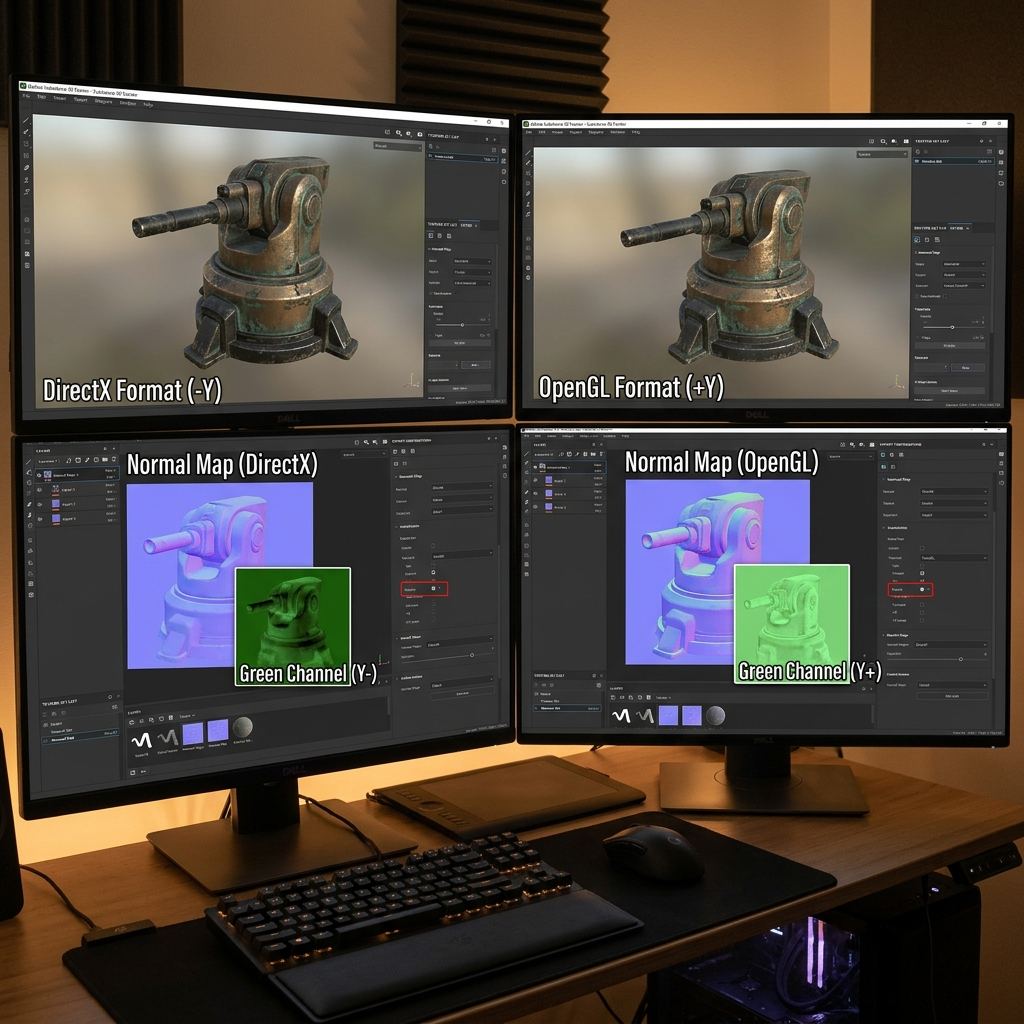
The most common failure point is the fundamental conflict between the DirectX (Y-) and OpenGL (Y+) normal map standards. If you export with the wrong Green channel swizzle, your model appears illuminated from beneath: screws that should be recessed stick out as convex bumps, and carved text turns inside out. This definitive guide explains how Substance Painter combines baked and painted normal channels, how to configure export templates, and how to verify correct coordinate swizzles for any game engine.
Architectural Breakdown: Normal Map Blending in Substance Painter
Substance Painter handles normal maps through a dual-stream architecture:
[Mesh Normal (Baked Texture from High-Poly)]
                      │
                      ▼
[Substance Painter Internal Layer Stack (Height & Normal Channels)]
Combines Micro-Alphas, Painted Scratches, and Material Stamps
                      │
                      ▼
[Normal Map Blending Operator]
Default: "Normal (blended)" ──> Reoriented Normal Mapping (RNM) Algorithm
                      │
                      ▼
[Output Export Presets]
Option A: Unreal Engine (DirectX: R=X+, G=Y-, B=Z+)
Option B: Unity / Blender / WebGL (OpenGL: R=X+, G=Y+, B=Z+)
Instead of using naive additive math (which distorts vector lengths), Painter employs Reoriented Normal Mapping (RNM). This algorithm ensures that painted surface micro-details follow the tilted curvature of the underlying baked high-poly normal rather than being flattened against the flat polygon base.
Try generating this material directly with our AI Seamless Texture Generator.
Target Engine Compatibility Matrix: DirectX vs OpenGL Normals
Before exporting from Substance Painter, verify the tangent orientation expected by your target platform:
| Target 3D Engine / DCC Software | Required Normal Standard | Green Channel (Y) Vector Direction | Visual Appearance in Texture Viewer |
|---|---|---|---|
| Unreal Engine 4 & 5 | DirectX | Y- (Down) | Indentations appear lit from bottom; top bevels appear dark |
| Unity (URP & HDRP) | OpenGL | Y+ (Up) | Classic periwinkle look; top bevels appear lit from above |
| Blender (Cycles & EEVEE) | OpenGL | Y+ (Up) | Matches Unity and WebGL standards |
| Godot Engine 4.x | OpenGL | Y+ (Up) | Standard OpenGL vector space |
| CryEngine / Lumberyard | DirectX | Y- (Down) | Inverted green channel standard |
| Autodesk Maya / 3ds Max | Configurable (Default DirectX) | User-selectable | Defaults to DirectX in 3ds Max, OpenGL in Maya |
| Three.js / Babylon.js (WebGL) | OpenGL | Y+ (Up) | Standard WebGL per-pixel fragment lighting |
Step-by-Step Tutorial: Configuring Normal Map Export in Substance Painter
Follow this procedure to export clean normal textures configured for your exact game engine:
- Verify Project Normal Configuration: When creating a new project in Substance Painter (
File──>New), set Normal Map Format to match your primary engine:- Choose
DirectXfor Unreal Engine. - Choose
OpenGLfor Unity, Blender, or WebGL.
- Choose
- Open the Export Textures Dialog: Press
Ctrl + Shift + Eor navigate toFile──>Export Textures. - Select the Output Template:
- For Unreal Engine 5, choose the Unreal Engine 4/5 (Packed) preset.
- For Unity URP, choose the Unity Universal Render Pipeline (Metallic Standard) preset.
- For general 3D use, choose the PBR Metallic Roughness preset.
- Inspect the Output Map Tab (Channel Swizzling):
- Click the Output Templates tab.
- Locate the
Normaloutput map. Ensure the Green channel is mapped correctly:- For DirectX:
Normal.Gis linked toInput Map: Normal (DirectX). - For OpenGL:
Normal.Gis linked toInput Map: Normal (OpenGL).
- For DirectX:
- Set Bit Depth and File Format:
- Set format to PNG or TGA with 16-bit depth to avoid stepping rings on smooth metallic surfaces.
- Execute Export: Click Export. Substance Painter combines your baked high-poly normals and painted height layers into a unified tangent-space normal map.
4 Frequent Substance Painter Normal Export Mistakes
Avoid these common export traps:
1. Inverted Insets After Importing to Unreal Engine
- Symptom: Bolt heads appear pushed inward like dimples; engraved serial numbers look like raised Braille dots.
- Fix: Open the normal map texture asset in the Unreal Content Browser. Under Texture, check the box labeled Flip Green Channel.
2. Double-Normal Normal Map Blending (Dark Halos)
- Symptom: Extreme dark outlines and violent normal spikes along painted seams.
- Fix: In your Substance Painter layer stack, ensure your material layers use the Normal (blended) blending mode rather than
ReplaceorLinear Dodge.
3. Stepping Rings and Banding in Smooth Reflections
- Symptom: Subtle spherical curves display concentric stair-step rings in game lighting.
- Fix: Export your normal map as a 16-bit PNG rather than an 8-bit file to increase gradation resolution from 256 to 65,536 steps.
4. Overlooked Padding / Edge Bleed at UV Borders
- Symptom: Thin dark lines outlining UV seams when viewing the 3D model from a distance.
- Fix: In the Export Textures dialog, ensure Dilation + Transparency is selected and set padding to at least
16px.
Ready to Generate PBR Normal Maps?
Skip manual baking and transform your 2D images into tangent-space PBR textures in seconds:
- Launch with Preset Prompt: Generate Seamless Material Now
Related reading:
Frequently Asked Questions
Can I convert a DirectX normal map to OpenGL after exporting from Substance Painter?
Yes. You can open the texture in our online normal map converter and toggle the Invert Green (Y) switch to instantly flip the coordinates between DirectX and OpenGL.
Does Substance Painter bake both the high-poly mesh and painted height into one map?
Yes. During texture export, Painter takes the initial baked mesh normal map and mathematically calculates the Reoriented Normal Mapping (RNM) interaction with all active paint layers and height masks, outputting a single unified normal map.
Why does my exported normal map look completely purple with faint detail?
If your normal map appears mostly flat purple with almost invisible details, your layer height values or brush opacity may be set too low, or you exported a blank layer mask instead of the combined document channels.
What is the recommended resolution for Substance Painter normal maps?
Standard production game assets typically utilize 2048x2048 (2K) for general props and 4096x4096 (4K) for hero characters and main vehicles. For mobile platforms, 1024x1024 (1K) is standard.
Does Substance Painter support generating tileable textures from photos?
While Substance 3D Sampler specializes in image-to-material conversion, you can achieve instant, zero-install seamless tiling and normal map generation using our online seamless texture generator.