
Whether you are a game developer, 3D artist, or independent designer, creating high-quality Normal Maps and PBR materials is often a time-consuming and tedious process. To solve this problem, we developed the Normal Map Generator — a powerful online tool that runs entirely in your browser in real-time, complete with AI-assisted generation features.
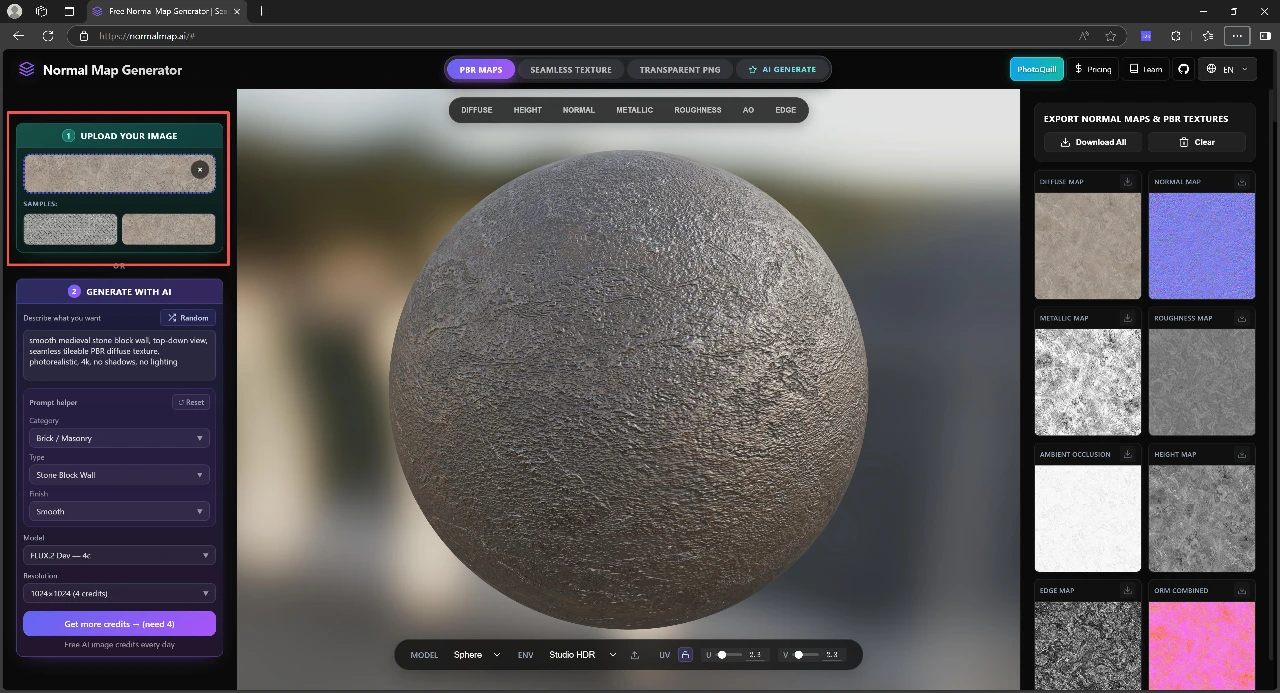 Mode 1: Upload a photo to generate Normal Map and PBR textures
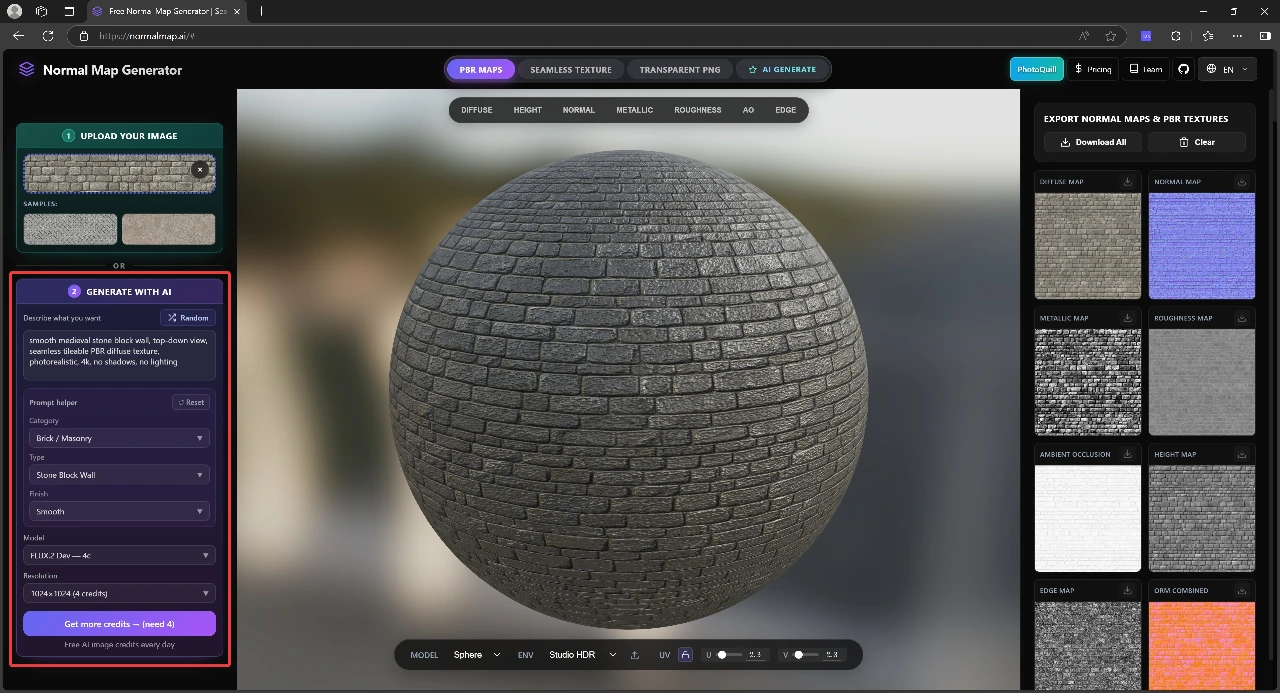 Mode 2: Enter a text prompt to generate seamless materials using AI
In this guide, we’ll walk you through the core features of the Normal Map Generator and show you step-by-step how to efficiently generate Normal Maps and full PBR texture sets.
What is the Normal Map Generator?
The Normal Map Generator is a fully browser-based online material generation tool. You don’t need to download any heavy software; all computations (including normals, roughness, displacement, etc.) are performed locally using GPU acceleration. This provides blazing-fast performance while keeping your data 100% private.
The tool provides two core features:
- Image to PBR: Upload any diffuse map (Albedo/Diffuse) or regular photograph to generate a complete PBR texture set with one click.
- Text to PBR (AI Generation): Enter a text prompt, and use our AI models to directly generate seamlessly tiling Normal Maps and PBR materials.
Mode 1: Upload an Image to Generate Normal Maps and PBR Sets
If you already have a base texture image (such as a photo of wood grain, bricks, or a metallic surface), you can easily convert it into a 3D material with volumetric details.
Step-by-Step Guide:
-
Upload Your Image Open the homepage and simply drag and drop your image into the “Upload Image” area on the left, or click to select a file. For the best results, we recommend using clear, evenly lit diffuse images without strong directional shadows.
-
Real-Time Preview & Tuning Once your image is uploaded, the 3D preview window on the right will instantly display how the material looks on a 3D model. You can adjust various parameters in real-time using the left panel:
- Strength: Controls the intensity and depth of the normal map bumps.
- Level & Blur: Used to smooth out noise or enhance fine details.
- Invert: If you find the bumps are going the wrong direction, click invert. We also offer a one-click toggle between Y+ (OpenGL) and Y- (DirectX), ensuring perfect compatibility with Unity, Unreal Engine 5, or Blender.
-
Generate the Full PBR Texture Set In addition to the Normal Map, the system automatically generates:
- Displacement (Height Map): Used for physical geometry deformation and parallax mapping.
- Roughness Map: Controls the surface reflection and glossiness.
- AO (Ambient Occlusion Map): Enhances shadow details in crevices and corners.
-
1-Click Download Once you are satisfied with the adjustments, you can download an individual map, or click the “Download All” button at the bottom to instantly package and download all your PBR textures in a ZIP file. The entire process takes just seconds!
Mode 2: Use AI to Generate Normal Maps and PBR Sets
Can’t find the right texture source? No problem! Our AI Generate module allows you to create high-quality, seamless PBR materials out of thin air using just a simple text prompt.
Step-by-Step Guide:
-
Switch to AI Generate Mode Click on the AI Generate tab in the top navigation bar or the homepage menu to access the intelligent generation workspace.
-
Enter Your Prompt Type the description of the material you want in the text box. For example:
“Seamless ancient cobblestone path with moss, high detail, 4k”
-
Generate a Seamless Texture Click the generate button, and in just a few moments, the AI will create a brand new, perfectly tileable (seamless) texture. This means you can tile the image infinitely without any visible seams or borders.
-
Auto-Convert to PBR Set After the AI generates the base diffuse texture, the system automatically runs it through our underlying material generation engine. It instantly extracts the Normal Map, Roughness, Displacement, and AO maps from the new image.
-
Real-Time 3D Preview & Export Just like the image upload mode, you can rotate the model, adjust lighting directions in the 3D viewport on the right, confirm the final PBR rendering effect, and download the full package for your 3D projects.
Why Choose Our Generator?
- Ultimate Performance & Privacy: Base image conversions happen 100% locally in your browser. Your images are never uploaded to any cloud servers, ensuring blazing fast speeds and total asset privacy.
- SEO & Workflow Friendly: Whether your pipeline uses Unity’s Y+ or Unreal Engine’s Y- convention, you can adapt the output with a single click—no need to manually invert channels in Photoshop.
- Embracing the AI Era: By seamlessly integrating AI image generation with traditional 3D material pipelines, we dramatically reduce the time and cost spent hunting for the perfect texture.
Specialized Generator & Workflow Tutorials
Expand your material generation toolkit with our specialized workflow guides:
- Batch Processing: Batch Process PBR Textures and Normal Maps Online
- Bump vs Normal Maps: Free Bump Map Generator Online & Workflow Guide
- Stylized & Glass Materials: Shattered Glass Normal Map Generator and Tutorial
Conclusion
Creating Normal Maps and PBR materials is no longer a complex technical hurdle. With our Normal Map Generator, whether you are converting a traditional photo or generating textures with AI, professional 3D rendering assets are just a few clicks away.
Try it out now and bring your 3D scenes to life instantly!
Related reading: Batch Process PBR Textures and Normal Maps Online · Free Bump Map Generator · Shattered Glass Normal Map Generator · What is a Normal Map?