
Whether you are rendering a sleek sports car, a tactical military prop, or a modern industrial interior, black surfaces present a unique rendering challenge. A poorly configured black paint seamless texture will swallow all the light in your scene, looking like a 2D void or a rendering error rather than a physical object.
To achieve photorealism, you must understand that “black” in the physical world is never absolute zero. It relies entirely on surface reflection, micro-scratches, and physically accurate PBR properties.
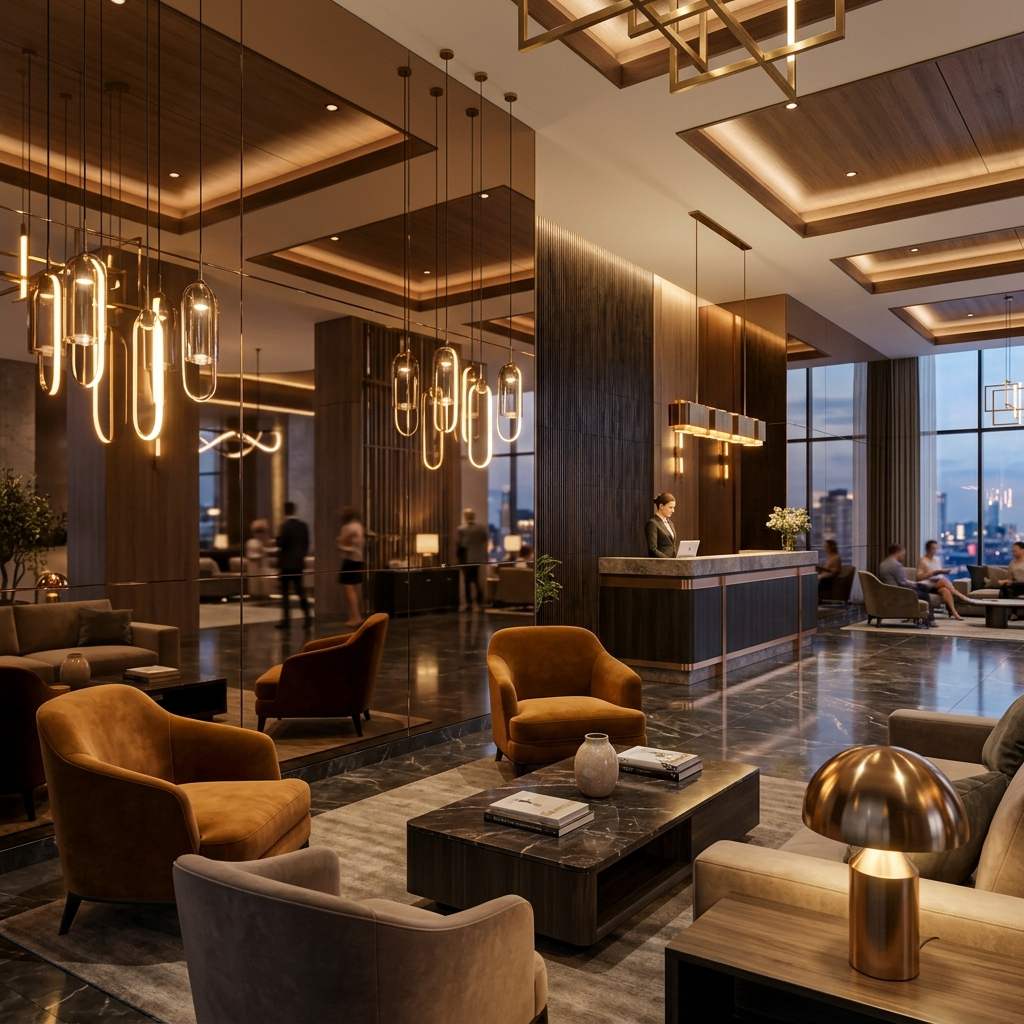 *A realistic black paint material requires subtle roughness variations to catch environmental lighting and define the object's shape.*
The “Vantablack” Trap in PBR
The most common mistake junior 3D artists make is setting the Base Color (Albedo) to pure black (RGB 0,0,0 or Hex #000000).
In a Physically Based Rendering (PBR) engine like Unreal Engine 5 or Blender Cycles, an Albedo of zero means the material absorbs 100% of the diffuse light hitting it. In reality, even the darkest charcoal or obsidian reflects a tiny percentage of light. If you use pure black, your object will lose all geometric volume and look like a black hole.
Always set your darkest black paint base color to roughly Hex #1A1A1A or RGB (0.02, 0.02, 0.02). This provides a baseline physical reflectance.
Configuring Black Paint Finishes
The appearance of black paint is dictated entirely by its Roughness map and Normal map. Since the base color is so dark, the human eye determines the material type by analyzing how the specular highlights scatter across the surface.
1. Matte Black (Tactical / Industrial)
Matte black paint scatters light widely. It doesn’t show sharp reflections of the surrounding environment.
- Set Metallic to
0.0. (Paint is a dielectric material, even if it is painted over metal). - Set Roughness between
0.6and0.8. - Use a seamless grunge or noise map in the Roughness input to simulate subtle fingerprints or dust, preventing the surface from looking artificially perfect.
2. High-Gloss Black (Automotive / Piano)
Glossy black acts like a dark mirror. The base color is pitch dark, but the reflections are razor-sharp.
- Set Metallic to
0.0. - Set Roughness very low, around
0.05to0.1. - You must use an HDRI environment map; without an environment to reflect, highly glossy black paint will simply look broken.
3. Scratched Black Metal
To reveal the metal underneath the paint, you need a specific PBR setup.
- Use a seamless scratch texture as a mask.
- The scratched areas should drive the Metallic value to
1.0and the Base Color to a bright silver. - The painted areas remain Metallic
0.0and Base Color dark gray.
PBR Paint Diagnostic Table
If your black painted asset looks incorrect in your render, consult this troubleshooting matrix:
| Symptom (现象/报错) | Primary Cause (根本原因) | Immediate Solution (快速解决方案) |
|---|---|---|
| Object looks like a 2D silhouette | Base Color is set to pure #000000 | Brighten the Base Color to at least #1A1A1A and increase scene lighting. |
| Looks like dark gray plastic instead of metal | Missing edge wear or metallic masking | Add a seamless scratch map to drive the Metallic input on exposed edges. |
| Glossy paint reflects nothing | No environment lighting | Add an HDRI skybox or area lights. Glossy black requires bright elements to reflect. |
Generating Custom Paint Textures
Finding a stock texture with the exact distribution of scratches, peeling paint, or matte dust you need for a specific prop can be frustrating.
Instead of searching indefinitely, you can instantly generate a bespoke, infinitely repeating painted surface. Power up your pipeline with our Free Online Seamless Texture Generator — Try Scratched Paint. You can also generate the accompanying physical bump and roughness data using our Normal Map and PBR Generator Online.
Related reading: The Ultimate Guide to Steel Texture Seamless Materials · Grey Lacquer Texture PBR Guide · How to Add Rough Texture in Blender