
One of the most frustrating obstacles when setting up a custom VRChat avatar in Unity is assigning a newly exported texture to your character mesh, only to watch entire clothing sections, hair meshes, or body parts vanish into completely see-through invisibility.
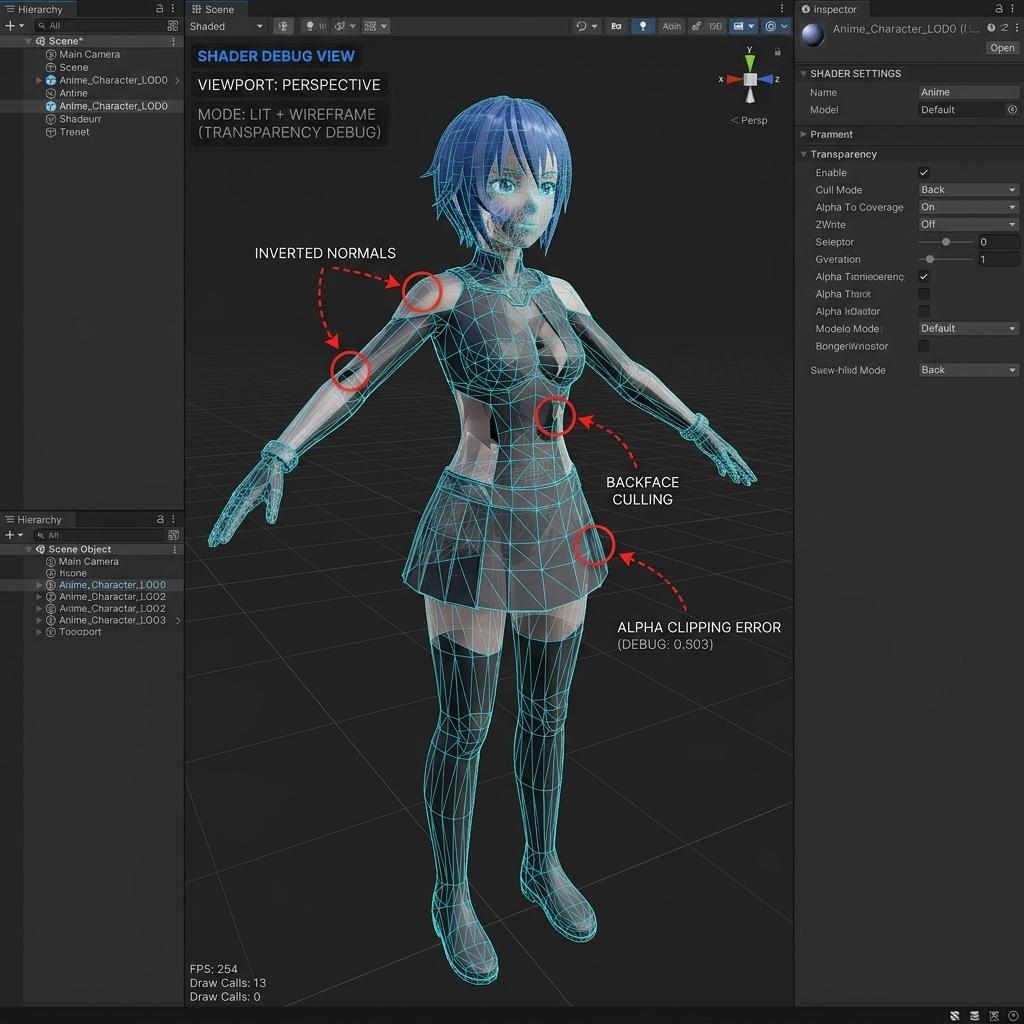
When Unity shader transparency settings or normal face orientations conflict with your texture alpha channel, meshes disappear from camera view due to backface culling or alpha clipping.
Why Avatar Meshes Disappear When Textures Are Assigned
In VRChat SDK development, transparency failures stem from three mechanical conflicts between your imported image asset and Unity’s material rendering pipeline:
- Unintended Alpha Channel Interpretation: Your PNG texture contains a transparent or empty alpha channel, and Unity’s shader interprets that channel as
0.0opacity across the entire surface. - Backface Culling on Single-Sided Geometry: Skirt, cape, or hair ribbons modeled as single-sided planes render invisible from behind unless the shader explicitly disables backface culling.
- Inverted Surface Normals: The 3D geometry normals point inward toward the interior of the mesh instead of outward toward the camera.
[VRChat Avatar Transparency Evaluation]
Assign Image Texture to Unity Material
               │
               ▼
[Check 1: Shader Rendering Mode]
       ├── Opaque Mode        ──> Ignores Alpha Channel (Renders Solid)
       ├── Cutout / Transparent Mode ──> Reads Alpha Channel
               │
               ├── Alpha = 1.0 (White) ──> Visible Surface
               └── Alpha = 0.0 (Black) ──> Completely Invisible Mesh
4 Step-by-Step Fixes for Invisible VRChat Avatar Textures
1. Disable Alpha Transparency in Standard or Poiyomi Shaders
If your texture file accidentally includes an empty alpha channel from Photoshop or Procreate export settings, transparent shader modes will hide your mesh.
- Select your avatar material in the Unity Project window.
- If using Unity’s Standard shader, check the Rendering Mode dropdown at the top of the Inspector. Change it from Transparent or Cutout back to Opaque.
- If using Poiyomi Toon or lilToon shaders, navigate to Rendering Options > Culling & Alpha. Set Alpha Mode to Opaque unless the mesh explicitly requires lace or visor transparency.
2. Turn Off Backface Culling for Hair and Clothing Capes
Single-sided garment meshes disappear when viewed from reverse angles because GPUs cull back-facing triangles to save rendering performance.
- In your avatar material Inspector, locate the Cull property setting.
- Change Cull Mode from Back (
Cull Back) to Off (Cull Offor Double Sided). - Verify in the Unity Scene view that your fabric or hair planes now render cleanly from both front and rear camera angles.
3. Fix Inverted Normals Inside Blender Before Exporting
If an entire arm or torso turns transparent regardless of shader settings, your mesh polygon normals are inverted inside your source 3D modeling package.
- Open your character
.blendfile in Blender and select the invisible mesh object. - Switch to Edit Mode (
Tab) and select all faces (A). - Press
Shift + N(or navigate to Mesh > Normals > Recalculate Outside) to flip all vertex normals outward. - Re-export your FBX asset into your Unity VRChat project directory.
4. Correct PNG Alpha Import Settings in Unity
Sometimes Unity imports RGB textures as sprites or alpha-weighted bitmaps by default, corrupting RGB color saturation.
- Click your texture file inside the Unity Project asset folder.
- In the Inspector panel, ensure Texture Type is set to Default (not Sprite).
- Uncheck Alpha Is Transparency if your texture does not use cutout transparency, then click Apply.
Diagnostic Reference Table: VRChat Avatar Visibility Issues
| Symptom (Visual Appearance) | Root Technical Cause | Recommended Solution |
|---|---|---|
| Mesh turns 100% invisible immediately upon texture assignment | Shader set to Transparent while texture has empty/black alpha channel | Switch shader Rendering Mode to Opaque or strip alpha channel in image editor |
| Clothing looks hollow or invisible from behind | Single-sided mesh polygons with Backface Culling enabled | Set material Culling Mode to Off (Double Sided rendering) |
| Mesh looks inside-out or displays dark shading holes | Inverted vertex normals on exported FBX geometry | In Blender Edit Mode, select all faces and press Shift + N to recalculate normals |
| Texture renders semi-ghostly or washed out | Alpha Is Transparency checked incorrectly on RGB texture | Uncheck Alpha Is Transparency in Unity Texture Import settings |
Professional Surface Enhancement for VRChat Avatars
Once your base albedo textures render visibly and correctly across your avatar mesh, elevate your character’s visual presence by adding crisp surface normal maps. Custom normal mapping gives clothing seams, leather straps, and metallic armor realistic depth under VRChat world lighting without increasing your avatar’s polygon count.
Upgrade your VRChat avatar materials with high-fidelity normal and roughness maps. Generate Avatar Fabric Normal Maps Now — Try Leather Strap or download optimized fabric and surface textures using our Create a Seamless Denim or Leather Costume Texture.
Related reading: What is a Normal Map? · How to Use Normal Maps in Unity and UE5 · Best Normal Map Creator Online · Roughness Map Guide