
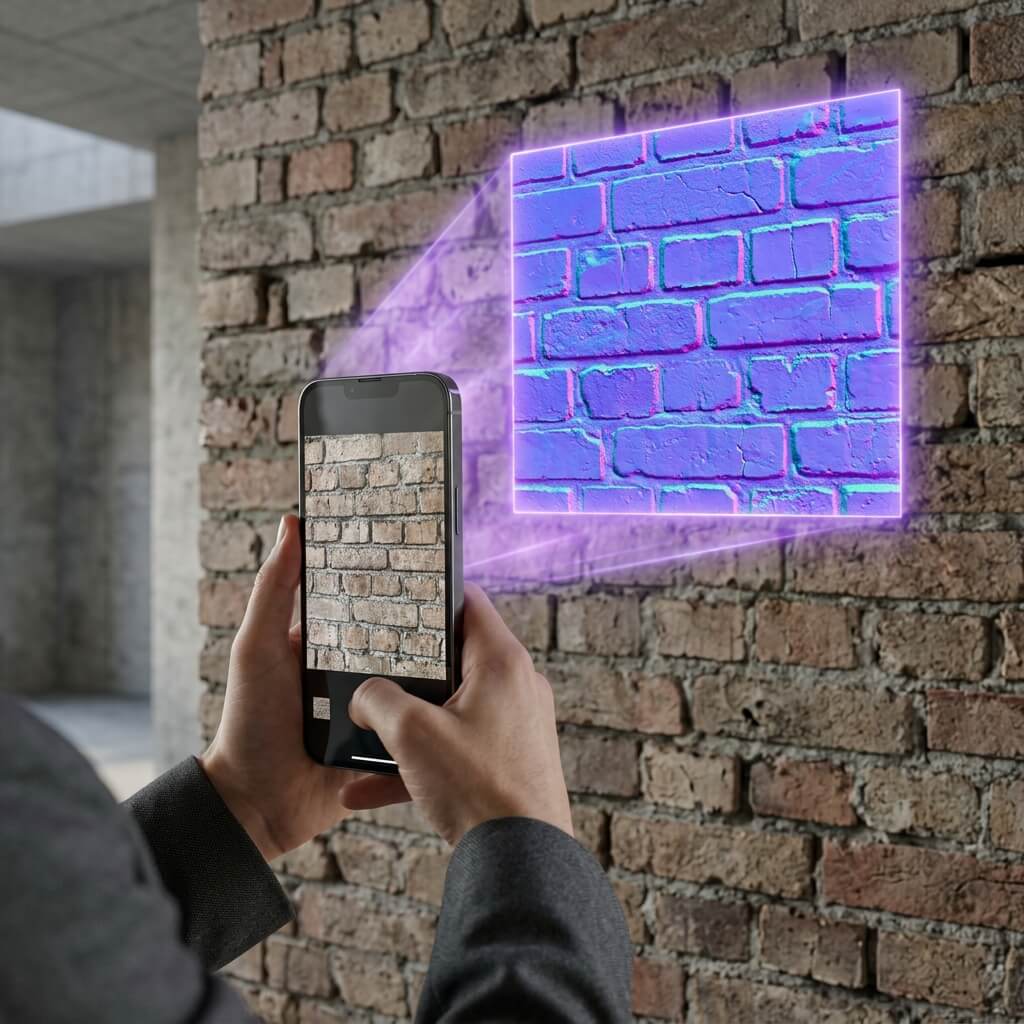
From the real world to the digital realm: turning smartphone pictures into 3D textures.
Creating quality 3D materials does not require expensive photogrammetry rigs or laser scanners. High-resolution smartphone snapshots of concrete, wood grain, or brick often make excellent PBR texture bases. The challenge lies in converting a flat picture to a normal map without baking in unwanted visual artifacts.
Photo Capture Guidelines for Textures
To successfully convert a photo texture to a normal map, your source image must have flat lighting and zero perspective warp. Keep these capture tips in mind:
- Avoid direct sunlight: Shoot outdoors on an overcast day. Hard shadows will confuse height-extraction algorithms, causing dark spots to render as deep physical holes in the 3D mesh.
- Align the camera: Keep your camera sensor parallel to the surface. Shooting at an angle introduces perspective distortion, which breaks the seamless repeat of the texture.
- Control reflections: Disable your flash. Polished surfaces (tiles, metals, varnished wood) will create specular glare spots that ruin the conversion process.
How to Convert a Picture or Texture Online
Once your source photo is ready, you can extract its normal data using our web tools:
- Open the Free Online Normal Map Generator.
- Drop your image file directly into the upload area.
- The browser-based algorithm will run edge-detection filters to compute the slopes of the pixel surface, outputting a standard tangent-space normal map.
- Clean up digital noise: Adjust the Blur slider slightly to smooth out high-frequency noise from smartphone sensors, preventing the normal map from feeling overly grainy.
- Set contrast levels: Use the Level slider to balance the depth distribution across the texture.
Converting a raw picture or downloaded texture to a normal map only takes a few adjustments, letting you quickly turn real-world surfaces into 3D-ready material assets. For simple files, you can also use our specialized Image to Normal Map Converter for a streamlined workflow.