
Creating realistic metallic materials is a core skill for any 3D artist. Whether you are texturing a steampunk prop, a doorknob, or an entire sci-fi hallway, you will eventually need a seamless brass metal texture.
The problem? You cannot simply take a photograph of a brass plate and use it as an Albedo/Diffuse texture.
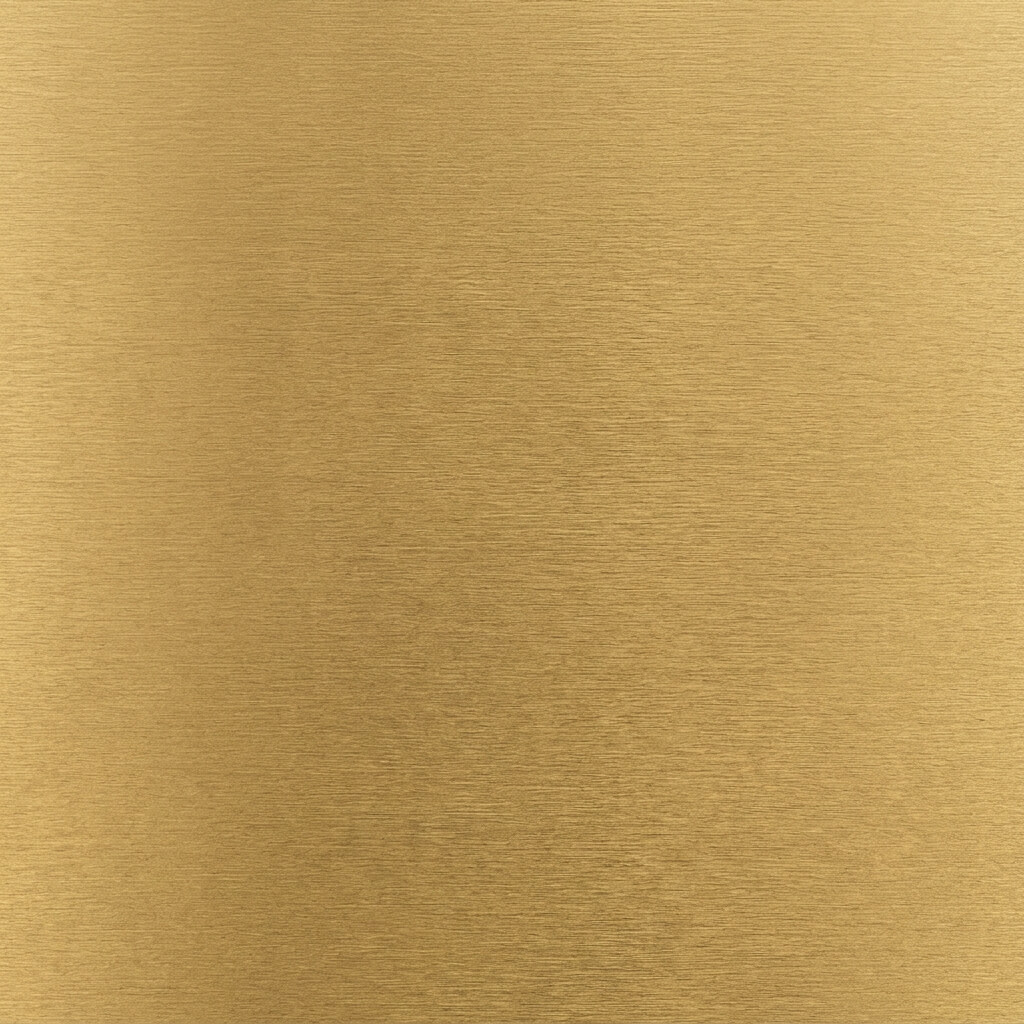
A seamless brushed brass texture with flat lighting, perfect for PBR workflows.
The Metal Texturing Trap: Baked-in Lighting
Metals are highly reflective. When you take a photo of brass, the camera captures the bright specular highlights (reflections of light sources) and dark shadows.
In a modern PBR (Physically Based Rendering) workflow, your base color map (Albedo) must contain zero lighting information. If you use a photo with baked-in highlights and try to tile it, your 3D object will have fake, repeating light spots painted directly onto it, which ruins the physically accurate lighting calculated by the game engine.
How to Create a Seamless Brass Metal Texture
To create a proper PBR metal material, we must first “Delight” the image, and then make it seamless. You can do both instantly using our 4K Seamless Texture Generator — Try Brushed Brass.
Step 1: Upload or AI Generate Your Metal
You can start by dropping a photograph of scratched or brushed brass into the web tool.
Alternatively, if you don’t have a good photo, switch to the AI Generate tab. Type a prompt like “brushed brass metal texture, flat lighting”. For the best metallic surface details, select the Nano Banana series models. If you just want to test different metals, the Flux and Z-Image-Turbo models are incredibly fast.
Step 2: Remove the Highlights (Delight)
Activate the Delight feature. This is the most crucial step for metals. The algorithm will analyze the image, detect the bright glare from the camera flash or sun, and flatten it out. The result will look “dull,” but this is exactly what a PBR engine needs! The shininess will be added back later via the Metallic and Roughness maps.
Step 3: Make it Seamless
With the lighting flattened, run the seamless algorithm. Since brushed metal usually consists of fine linear scratches, the tool will effortlessly blend the edges together, creating a perfectly continuous seamless brass metal texture.
Step 4: Generate PBR Metallic Maps
Send the seamless image to the Normal Map Generator — Try Brushed Metal Scratches.
- Push the Metallic slider all the way to 1.0 (since brass is a conductor).
- Generate a Roughness map based on the scratches.
- Generate a subtle Normal map to give depth to the brushed grain.