
Many VFX assets, particle effects, fire animations, and glow sprites are distributed with a solid black background. While this looks great for previewing, it becomes a problem when you need to composite these assets into a game engine, video editor, or website.
The Transparent PNG Maker tool is designed specifically to solve this problem by converting black backgrounds into proper Alpha channels, creating a clean, usable transparent PNG.
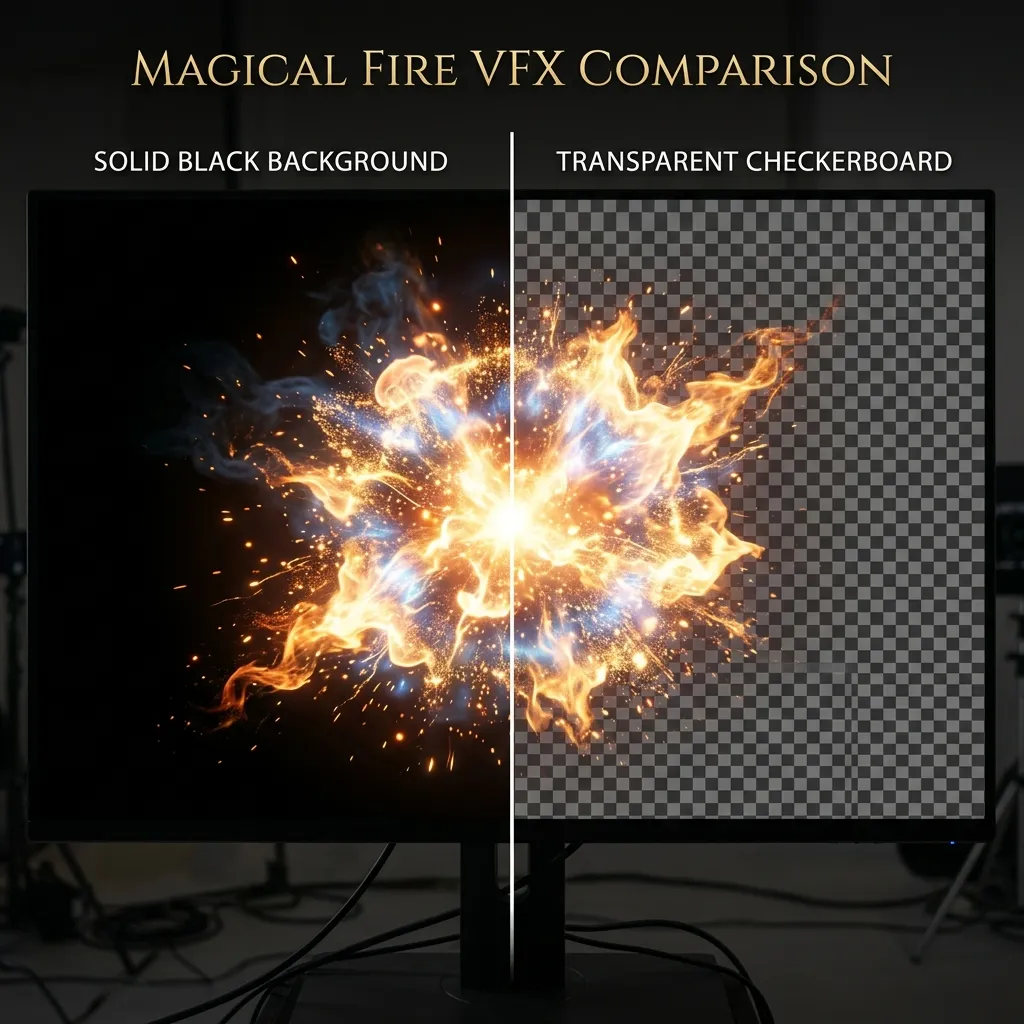
Comparison: A fire VFX asset easily converts from a useless solid black background to a composite-ready transparent PNG.
Why Remove Black Backgrounds?
If you try to simply set the blending mode of an image to “Screen” or “Additive” in your engine, you limit how the asset interacts with lighting and other layers. By properly extracting the alpha channel (removing the black background):
- True Compositing: Your assets can use standard alpha blending, interacting naturally with backgrounds of any color (not just dark ones).
- Cleaner Edges: Soft edges, smoke, and glows retain their semi-transparency without harsh dark halos.
- Sprite Sheets: Essential for exporting ready-to-use sprite sheets for 2D games and UI elements.
Step-by-Step Guide to the Transparent PNG Maker
Our browser-based Transparent PNG Maker makes this process instantaneous and keeps your data entirely within your browser (no uploads to external servers).
Step 1: Upload Your Image
Drag and drop your image (JPEG, PNG, or WebP) that features an effect on a black background into the tool. It works exceptionally well for:
- Fire and explosion stock assets
- Lens flares and optical glows
- Magic spells and energy beams
- Smoke and fog elements
Step 2: Tune the Extraction Parameters
The tool automatically performs a luma-based alpha extraction. You can fine-tune the results using the side panel:
- Alpha Cutoff (Threshold): This slider determines how aggressively dark pixels are treated as fully transparent. If your effect has faint smoke that is disappearing, lower this value. If the background isn’t completely black and leaves a faint residue, increase it.
- Color Gain (Decontaminate): When a glow is extracted from a black background, the colors themselves can sometimes look “dirty” or too dark because they were pre-multiplied with black. Increasing the Color Gain boosts the brightness and saturation of the semi-transparent pixels, restoring their original vibrancy.
Step 3: Verify with the Preview Backgrounds
To ensure your extraction is perfect, use the preview toggles in the viewport:
- Checkerboard: The classic standard for evaluating transparency.
- Dark BG / Light BG: Toggle between these to ensure your effect doesn’t have dark halos on light backgrounds, or washed-out edges against dark backgrounds.
Step 4: Export Your Assets
Once you are satisfied with the extraction:
- Click Download Transparent PNG to get a standard image with a built-in alpha channel.
- Alternatively, you can download the raw Alpha Mask and the Texture separately if your specific game engine or shader pipeline requires them to be split.
Looking to Remove a White Background Instead?
If your image has a white background (e.g., a signature on white paper or a logo on a plain white JPEG), check out our dedicated guide: How to Remove a White Background from a Signature or Logo Online.