
One of the most common graphic tasks is trying to digitize a real-world signature. You sign a piece of white paper, take a photo with your phone, but end up with a JPEG that has a solid white (or grayish) background. Pasting this onto a digital contract or PDF looks messy and unprofessional.
Similarly, many companies supply their logos as flat JPEGs against a white background, making it impossible to place them cleanly over dark websites, colored headers, or presentation slides.
While most “magic wand” tools or AI background removers leave nasty white halos, jagged edges, or accidentally delete thin strokes, our free Transparent PNG Maker features a dedicated White BG Removal Engine that solves this mathematically.
 *Common Problem: Trying to use a photo of a signature brings the unwanted white paper background with it.*
Why Standard Background Removers Fail
Standard background removers struggle with signatures and line-art for several reasons:
- Semi-transparent Edges: A pen stroke isn’t highly solid. The edges naturally fade into the paper (anti-aliasing). Magic wands usually force a hard cut, resulting in pixelated “staircase” edges.
- White Halos: If the tool tries to soften the edge, it often leaves a microscopic rim of white paper pixels attached to the dark ink, which glows terribly when placed on a dark background.
Our tool extracts the Alpha Channel (transparency) strictly based on the luminance values, essentially performing an unmultiply operation. This preserves every fractional pixel of your pen stroke while completely eradicating the white substrate.
Step-by-Step: Removing White Backgrounds
Step 1: Upload Your Image
Open the Transparent PNG Maker and drag your JPEG or PNG file onto the upload area.
Step 2: Switch to “White BG” Mode
In the right-side control panel, locate the Background Type (Segmented Control) at the very top. Click on White BG. The tool’s inner engine instantly flips to evaluate darkness instead of brightness, turning the white paper fully transparent and keeping the dark ink opaque.
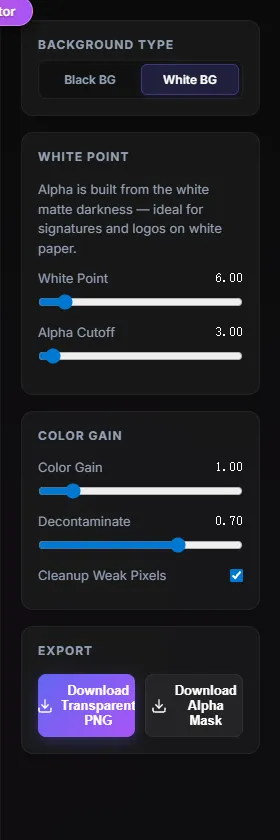 *Switching the Background Type to "White BG" instantly eliminates the white paper.*
Step 3: Adjust the “White Point”
Phone photos of white paper often look gray, yellow, or blue due to lighting.
- If the background isn’t deleting completely and leaves a gray residue, gently increase the White Point slider. This expands the threshold of what is considered “pure paper”.
- If your signature is getting too thin or faint, decrease the slider.
Step 4: Boost Color Gain (Optional)
Extracting dark ink can sometimes leave the final strokes looking a bit washed out. Increasing the Color Gain slider fixes this instantly by amplifying the density and richness of the remaining pixels, making your pen strokes bold and strictly black (or blue).
Step 5: Verify via Dark Background Toggle
To ensure there is zero white halo left behind:
- Look at the Viewport Preview.
- Click the Dark BG button below the image. If your blue or black signature looks clean against the deep gray without any glowing white rims, your extraction is perfect!
Step 6: Export
Click the Download Transparent PNG button. You now have a flawless, compositing-ready asset for your PDFs, websites, and graphics.
Need to Remove a Black Background Instead?
Working with VFX fire, glows, or particles on a black background? See our companion guide: How to Remove Black Backgrounds: Transparent PNG Maker Guide.