
Whether you are rendering a luxurious velvet sofa for an architectural visualization or modeling a hero character’s clothing for a game, fabric is one of the most challenging materials to simulate. Unlike hard surfaces such as metal or concrete, cloth interacts with light in highly complex ways due to millions of microscopic woven threads.
To achieve a photorealistic cloth material, you must start with a high-resolution fabric texture seamless map and configure your PBR (Physically Based Rendering) shader to simulate light scattering.
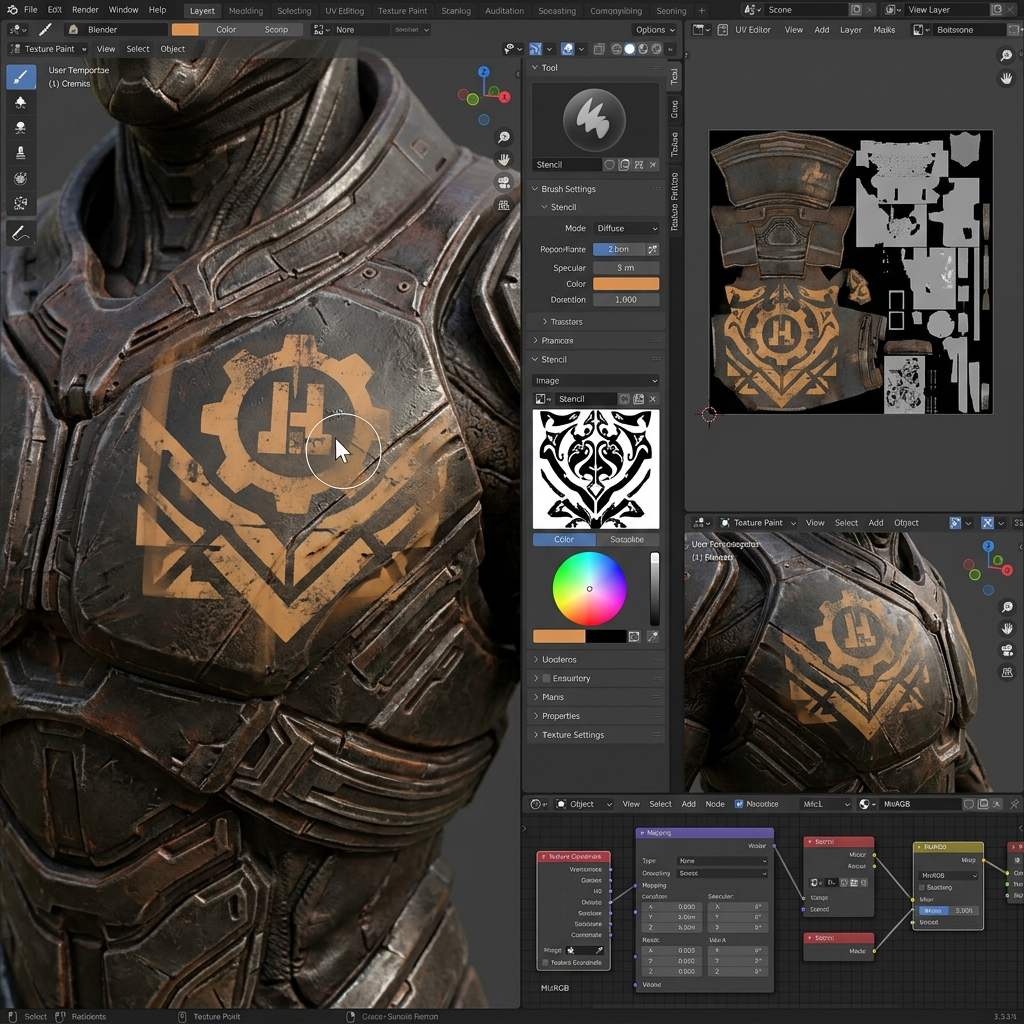 *Photorealistic fabric rendering relies heavily on a high-quality normal map to simulate the intricate weave of the individual threads.*
The Secret to Cloth: The Normal Map
If you apply a flat image of a cotton shirt to a 3D cushion, it will look like smooth plastic painted with a pattern. The defining characteristic of fabric is physical depth.
Every type of fabric (denim, linen, silk, wool) has a distinct weave pattern. Because modeling millions of individual threads is impossible, you must rely on a seamless Normal Map or Height Map. When a seamless normal map is tiled across your 3D model, the render engine simulates tiny micro-shadows inside the weave of the fabric, instantly providing realistic volume and weight to the material.
Step-by-Step: The PBR Fabric Shader Setup
Standard PBR setups (Base Color, Metallic, Roughness) are designed for hard surfaces. To render cloth correctly in software like Blender (Principled BSDF) or Unreal Engine, you must utilize specific fabric-oriented settings.
1. Disable Metallic, Maximize Roughness
Fabric is a dielectric material.
- Ensure the Metallic slider is strictly at
0.0(unless you are rendering a metallic sequin dress). - Set the Roughness slider very high, between
0.8and1.0. Cotton, wool, and linen absorb light and scatter it heavily; they do not have tight, glossy specular highlights like plastic.
2. Enable Sheen (The Fuzz Factor)
Real fabric is covered in microscopic fuzz (peach fuzz) that catches light at grazing angles, especially on edges facing away from the camera.
- Locate the Sheen (or Cloth/Fuzz) slider in your PBR shader.
- Turn Sheen up to
1.0for materials like velvet, peach-skin cotton, or felt. - This adds a soft, glowing rim light to the edges of the fabric geometry, vastly improving the realism of upholstery and clothing.
PBR Fabric Reference Table
Use these baseline settings for different types of common 3D fabrics:
| Fabric Type (布料材质) | Roughness (粗糙度) | Sheen (边缘绒毛反光) | Normal Strength (法线强度) |
|---|---|---|---|
| Standard Cotton/Linen | 0.9 | 0.3 | 0.8 (Heavy weave texture) |
| Luxury Velvet | 0.8 | 1.0 (High Fuzz) | 0.2 (Very subtle weave) |
| Shiny Silk / Satin | 0.3 | 0.0 | 0.1 (Almost completely smooth) |
| Heavy Leather | 0.6 | 0.0 | 1.0 (Deep crease normal map) |
Generating Custom Seamless Fabrics
Sourcing the exact weave pattern, color, and distress level for a specific client’s sofa upholstery can take hours of searching through stock material libraries.
If you need to rapidly generate bespoke, infinitely tileable fabric patterns, power up your pipeline with our Free Online Seamless Texture Generator — Try Woven Linen. You can also generate the essential thread depth maps using our Normal Map and PBR Generator Online.
Related reading: What is a Normal Map? · How to Add Rough Texture in Blender · What is a Tileable Texture?