
Setting up foliage, chainlink fences, or decal planes using PNG alpha textures in Blender often leads to a disappointing render result: your transparent texture displays cleanly on the surface, but the shadow on the ground remains a solid, blocky rectangular silhouette—or disappears completely.
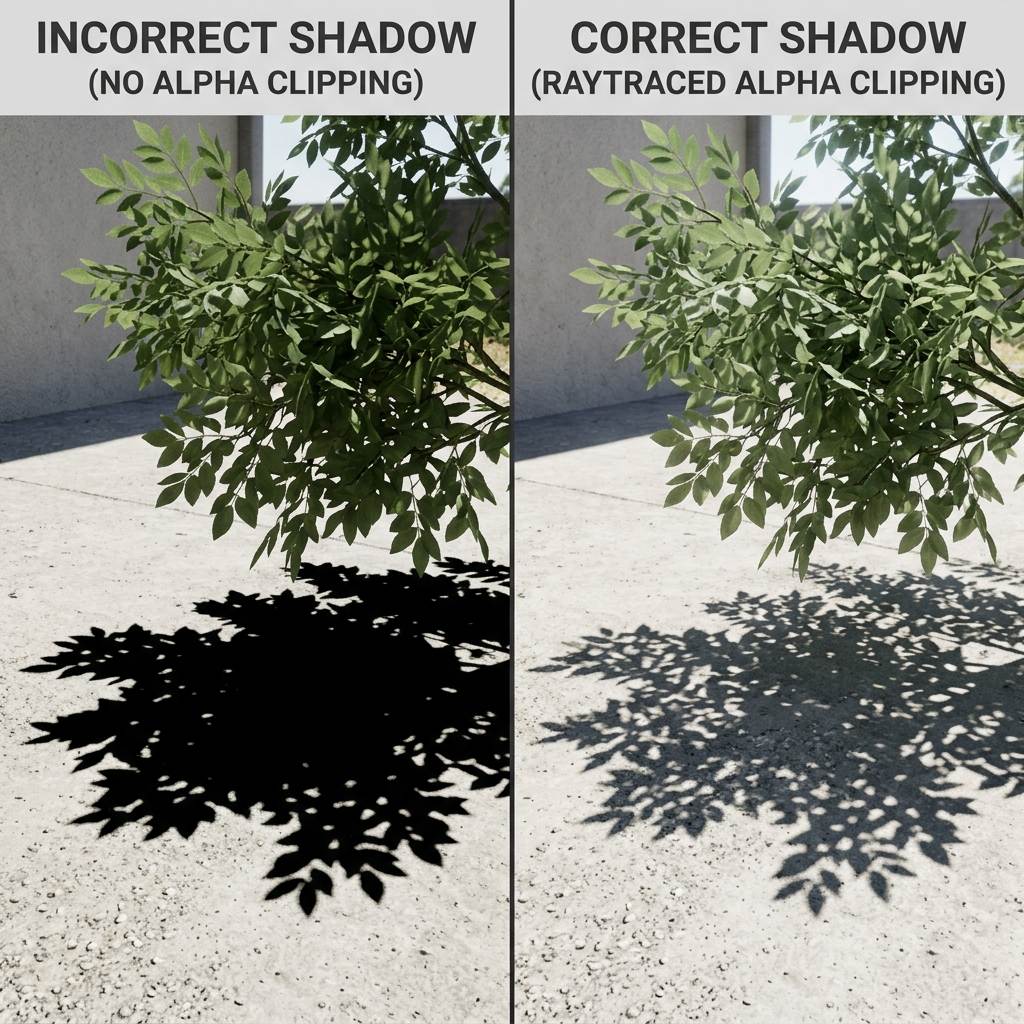
Configuring both material alpha sockets and render engine shadow pass modes ensures transparent leaf or grille cutouts cast physically accurate silhouettes.
Why Transparent Meshes Cast Solid Black Shadows
In Blender’s shading architecture, assigning an image with a transparent background to the Base Color socket of a Principled BSDF node colors the surface pixels, but it does not automatically inform the shadow ray tracer to clip through empty areas.
When light rays hit a polygon plane during shadow evaluation, the engine assumes the surface is 100% opaque unless the texture’s Alpha channel explicitly drives the shader’s transparency or alpha cutout threshold.
[Transparent Shadow Evaluation Setup]
Image Texture Node
       │
       ├── Color Output ──> [Principled BSDF: Base Color]
       │
       └── Alpha Output ──> [Principled BSDF: Alpha Socket]
                                   │
                                   ▼
                   [Material Shadow Mode Check]
       ├── Opaque Mode        ──> Casts Solid Black Box Shadow
       └── Alpha Clip / Hashed ──> Casts Accurate Cutout Silhouette Shadow
4 Step-by-Step Solutions for Clean Transparent Shadows
1. Connect the Texture Alpha Socket in Shader Editor
The most common cause of solid black shadow blocks is forgetting to link the image alpha output channel inside the material node tree.
- Open the Shader Editor workspace with your transparent object selected.
- Locate your primary Image Texture node containing the transparent PNG or WebP file.
- Click and drag a noodle from the grey Alpha output socket on the Image Texture node directly into the grey Alpha input socket on your Principled BSDF node.
2. Configure Shadow Mode in Blender Eevee and Eevee Next
Even with the Alpha socket connected, real-time Eevee viewports default to opaque shadow casting for performance reasons.
- Select your object and open the Material Properties tab (red sphere icon in Properties sidebar).
- Scroll down to the Settings panel section.
- In Blender 3.x to 4.1, locate the Shadow Mode dropdown and change it from Opaque to Alpha Clip (for sharp cutout foliage) or Alpha Hashed (for soft gradients).
- In Blender 4.2+ (Eevee Next), ensure Raytracing is enabled under Render Properties so alpha-tested shadows calculate accurately.
3. Adjust Alpha Clip Threshold for Crisp Silhouettes
When rendering chainlink fences or leaves, blurry edge pixels can cause unwanted white halos or jagged shadow borders.
- In the Material Properties > Settings panel under Alpha Clip, locate the Clip Threshold slider.
- Set the threshold to
0.33to0.50. - Values above
0.50trim away thin alpha borders, preventing grey shadow fringing under high-contrast sun lamps.
4. Fix Glass and Semi-Transparent Shadows in Cycles
Cycles handles cutout alpha shadows automatically once the Alpha socket is connected. However, for stained glass or semi-transparent curtains that need colored light transmission, standard alpha clipping falls short.
- In the Shader Editor, add a Mix Shader node and a Transparent BSDF node (
Shift + A > Shader > Transparent BSDF). - Set the Transparent BSDF color to pure white (
RGB 1.0, 1.0, 1.0). - Use your texture’s Alpha output as the Fac input on the Mix Shader to blend smoothly between your surface shader and pure light transmission.
Diagnostic Reference Table: Transparent Shadow Troubleshooting
| Symptom (Shadow Appearance) | Root Technical Cause | Immediate Solution |
|---|---|---|
| Shadow is a solid black rectangle box | Image Texture Alpha socket disconnected from Principled BSDF | Connect Image Texture Alpha output to Principled BSDF Alpha input |
| No shadow appears at all in Eevee | Material Shadow Mode set to None | Change Material Shadow Mode to Alpha Clip or Alpha Hashed |
| Shadow edges look noisy or speckled | Alpha Hashed mode selected with low viewport sample counts | Switch Shadow Mode to Alpha Clip or increase render sampling passes |
| Shadow has thick grey/white borders | Clip Threshold set too low (< 0.1) | Increase Clip Threshold value to 0.5 to discard semi-transparent fringe pixels |
Optimize Your Cutout Textures for CGI Production
Whether you are rendering architectural vegetation or game-ready fence grids, clean transparent shadow silhouettes depend on accurate normal mapping across your cutout planes. Adding crisp surface normal maps to flat transparent billboards creates convincing edge bevels and specular glints as light moves across your scene.
Elevate your transparent 3D assets with high-precision surface normal maps. Generate Foliage or Fence Normal Maps Now — Try Chainlink or build complete material collections with our Create a Seamless Leaf or Grass Cutout Texture.
Related reading: What is a Normal Map? · Add Ambient Occlusion in Blender · Roughness Map Guide · Best Normal Map Creator Online